
sadp basics
How to Activate a Hikvision IP Camera
Use SADP from HiTools on your LAN to find inactive Hikvision cameras, set an admin password, verify in a browser, then tune IP and security.
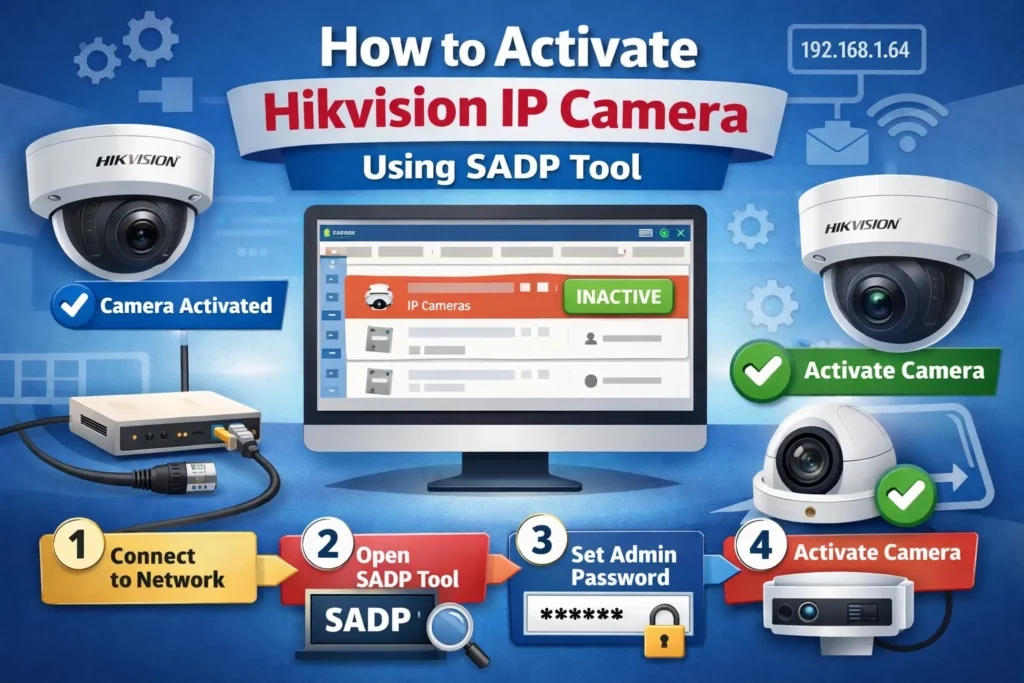
New Hikvision IP cameras often appear as Inactive in SADP until you complete first-time setup. That state is intentional: it blocks casual use until you define admin credentials. This guide walks through activation on a local network using SADP; exact labels vary slightly by firmware and SADP version.
For a shorter overview of the same pattern across device types, see Activating Hikvision devices with SADP. For NVRs, see Activate Hikvision NVR.
Downloads: Use our SADP download page (SADP.zip, SADPTool.pkg.zip, and HiTools links). Install help: SADP on Windows 10.
Table of contents
Why SADP tool is needed to activate Hikvision IP camera
SADP (Search Active Device Protocol) is Hikvision’s free desktop utility (via HiTools) to discover devices on the LAN and run activation where supported. Until activation completes, the camera typically will not behave like a fully managed device on your network.
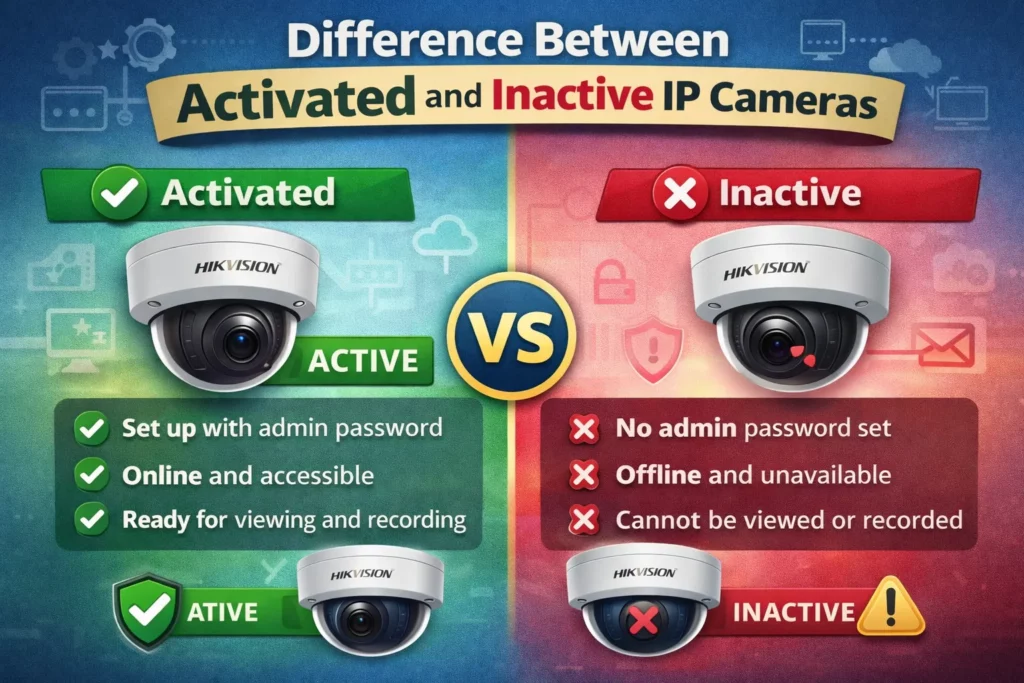
Difference between activated and inactive IP cameras
- Inactive: factory or reset state—setup (including password creation) is not finished. The device is visible in SADP but not ready for normal operation.
- Active: activation completed; you can log into the web UI with the admin password you set (and use features your firmware exposes).
Requirements before activating Hikvision IP camera
What you need
Computer
- Windows or Mac with SADP installed (see Downloads above); Windows installers are most common in the field.
- Disk space for the installer; administrator rights to install and usually to run SADP reliably.
Network
- Camera connected with Ethernet (and PoE or a separate power supply).
- PC and camera on the same L2 network (same VLAN/subnet for typical discovery).
- A path to your router or DHCP server if you use automatic addressing.
Password planning
- Use a unique, strong password stored in a password manager or your company’s credential process.
- The camera’s UI will enforce its own rules (length, complexity); meet or exceed them.
Compatible models
SADP targets Hikvision network cameras and related devices. If a model is non-standard or OEM-branded, confirm with your supplier that SADP activation applies.
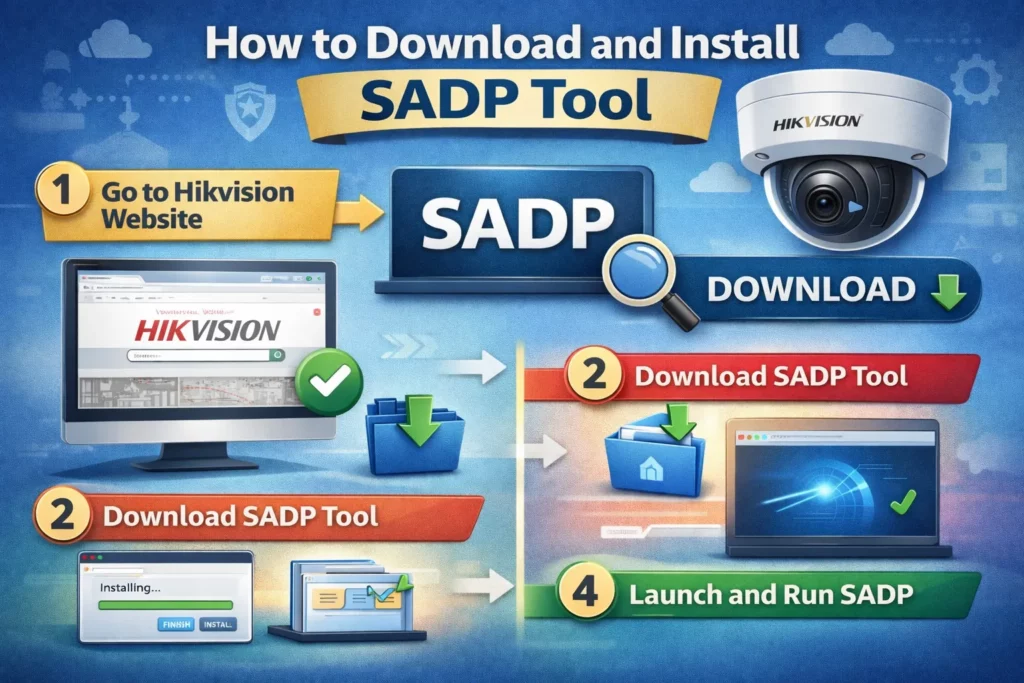
How to download and install SADP tool
Step 1: Download SADP safely
Download from Hikvision HiTools (see the download page linked above and SADP official download (HiTools)). Pick the build that matches your OS and architecture. Version numbers change often—always take the current listing from the portal.
Step 2: Install the software
Run the installer as administrator on Windows. Complete Npcap when prompted. Step-by-step: use the Windows install guide linked under Downloads above.
Step 3: Launch SADP tool
Open SADP; it should start scanning the local network. Use Refresh after cable or power changes.
How to activate Hikvision IP camera using SADP tool
Step 1: Connect the camera to the network
- Connect Ethernet to the camera and to a switch / router (or NVR PoE port per your design).
- Apply power (PoE or adapter).
- Wait for boot (LED behaviour varies by model).
Step 2: Launch SADP tool
Run SADP (Run as administrator on Windows if discovery is empty). Wait for a scan or click Refresh.
Step 3: Select the inactive camera
Find your camera by model, serial, or MAC (compare to the label on the device). Inactive devices are usually called out in the list or status column.
If nothing appears: SADP not finding cameras, Windows Firewall blocking SADP, VPN and local LAN.
Step 4: Create admin password
Use the activation / password fields SADP shows for that device. Enter the password twice if required. Follow on-screen strength rules (uppercase, lowercase, digits, symbols—exact requirements depend on firmware).
Avoid predictable passwords; use your password manager to generate and save the secret.
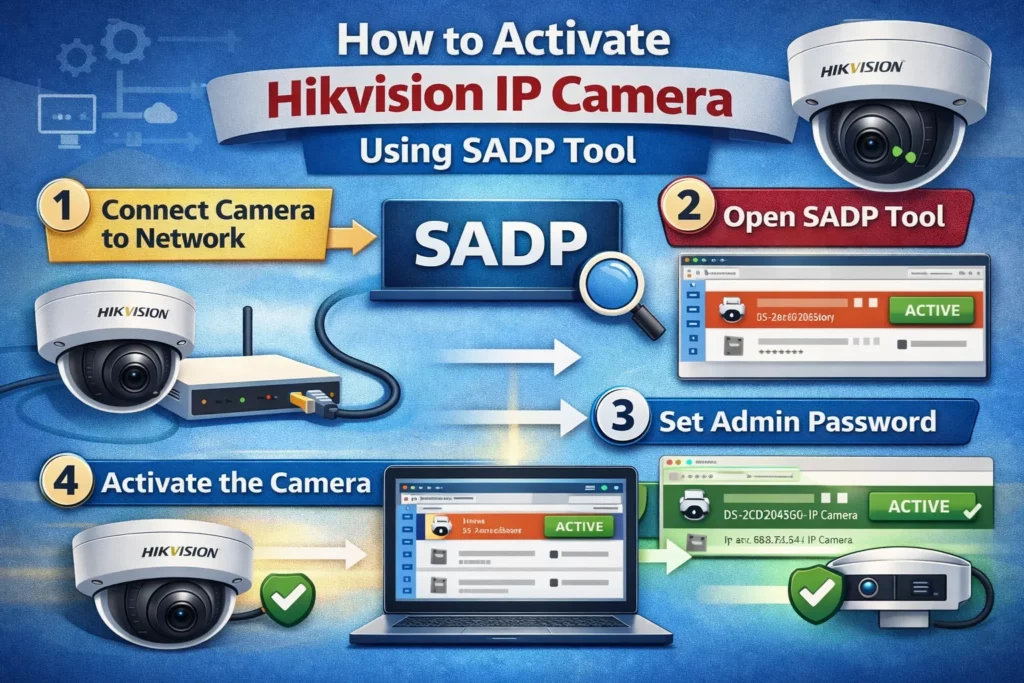
Step 5: Activate the camera
Click Activate (or the equivalent). Wait until SADP reports success; do not unplug during the operation. Status should move to Active after refresh if the UI shows that field.
Some SADP builds allow multiple inactive devices to be selected for batch activation where the UI supports it; if yours does not, activate one device at a time.
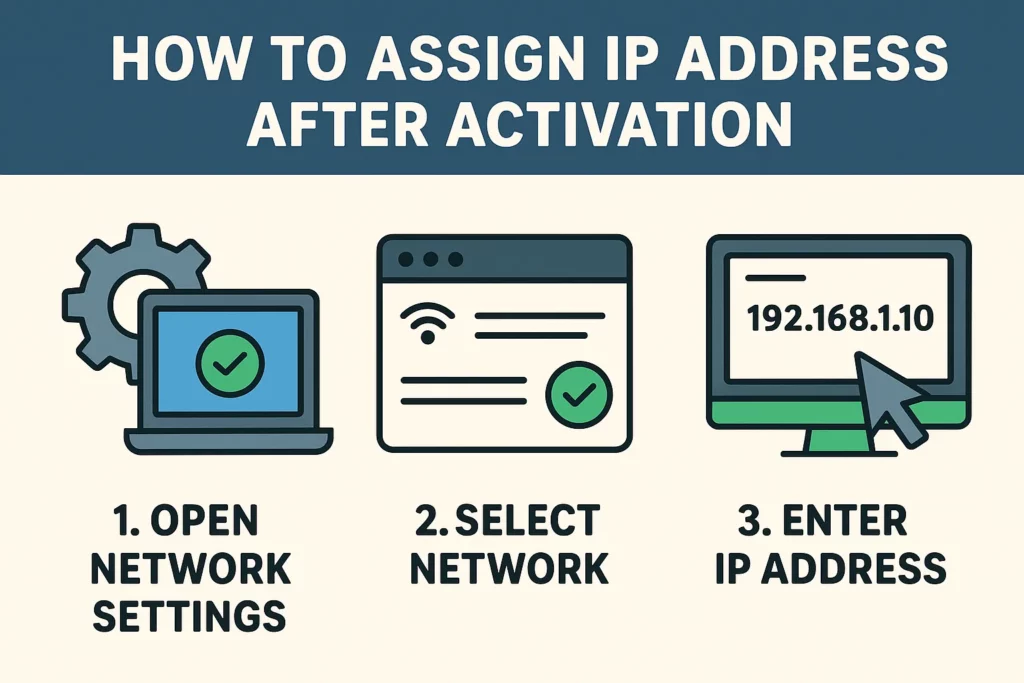
How to assign IP address after activation
DHCP vs static IP
- DHCP: simple; the address may change unless you reserve it on the router.
- Static: fixed address—common for cameras in professional installs.
Setting IP address via SADP
Select the active camera and open network parameters (wording varies). Choose DHCP or manual/static, then set IP, subnet mask, and gateway to match your design. Apply / Modify and wait for confirmation.
Detailed walkthrough: Change IP with SADP and Editing network parameters in SADP.
Avoiding IP conflicts
Pick an address outside DHCP pools or reserve the address on the router. Document assigned IPs per site.
How to verify Hikvision camera activation
Check status in SADP
Confirm Active (or equivalent) and that IP / serial look correct.
Access via web browser
Browse to https://camera-ip or http://camera-ip per your firmware and TLS setup. First load may take a short time.
Log in
Username is commonly admin; password is the one you set at activation. If you are locked out, use authorised recovery—see Password reset ethics and support and SADP password reset where applicable.
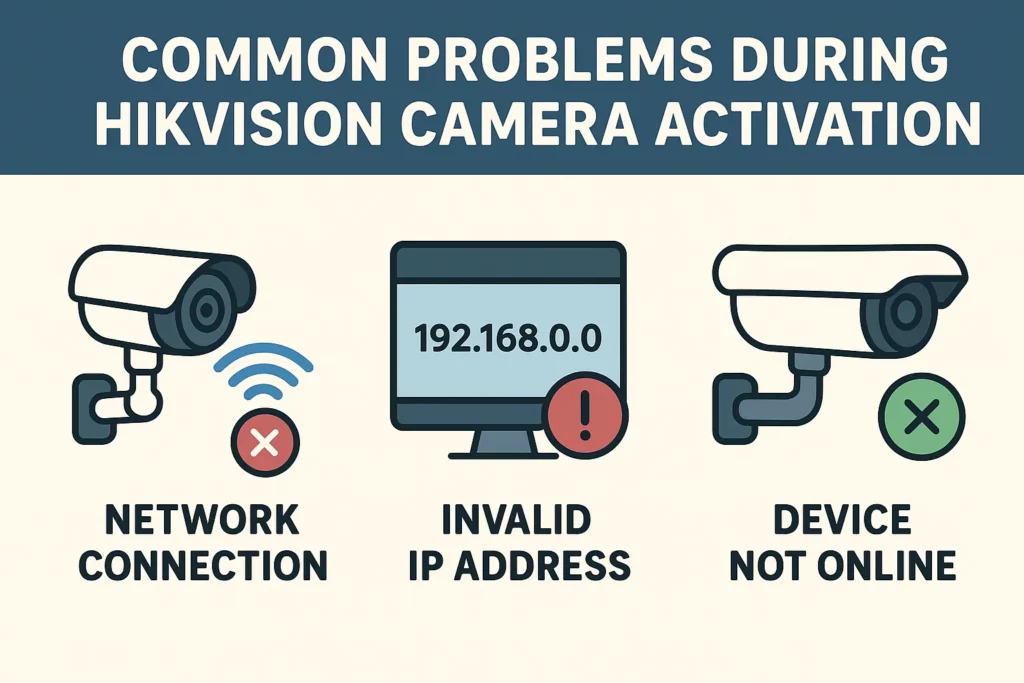
Common problems during Hikvision camera activation
Camera not showing in SADP tool
Check cable, PoE budget, same subnet/VLAN, firewall, VPN, and adapter selection in SADP. See inactive devices in the SADP list.
Activation failed error
Retry with a password that clearly meets all rules shown. Confirm ping or L2 reachability to the camera IP. Power-cycle once and refresh SADP.
Password not accepted
Check Caps Lock and keyboard layout; special characters must match exactly. If you cannot recover access, factory reset is model-specific (button/pin, hold time)—check the manual; you will need to activate again.
Network not detected
Confirm the PC adapter used for the CCTV LAN is up and that SADP is bound to the correct interface if your build offers a choice.
How to fix SADP tool activation issues
Firewall
Prefer allow rules for SADP on Private profiles rather than leaving the firewall off. See the firewall article linked in the troubleshooting list above.
Correct network adapter
On multi-homed laptops, select the Ethernet (or Wi‑Fi) interface that actually reaches the camera subnet.
Reset camera if required
Use factory reset only when authorised and documented; it clears settings and returns the device toward inactive / first-boot behaviour.
Security tips after activating a Hikvision IP camera
- Harden the web UI: disable unused services, prefer HTTPS where supported, and follow your org baseline.
- Rotate credentials on a schedule your policy defines; use unique passwords per device where practical.
- Firmware: update from official sources only—firmware updates.
- Segment cameras from office PCs where possible—segmenting cameras.
Frequently asked questions (FAQs)
Can I activate a Hikvision IP camera remotely?
Activation is meant to be done from the local network with the device, not from arbitrary internet locations. After activation, remote access depends on your secure network design (VPN, etc.).
What is the default username for a Hikvision camera?
The username is typically admin. Modern devices expect you to set the password at activation; there is no universal default password.
Why is my Hikvision camera inactive?
New or factory-reset units stay inactive until first-time setup completes—a deliberate safeguard.
Is SADP required for all Hikvision cameras?
No, but it is the most common desktop path. Some setups use NVR-driven onboarding or other tools; SADP remains the standard for many IP cameras on the LAN.
Can I activate multiple cameras at once?
Some SADP versions support multi-select batch activation. If your UI does not, activate one at a time.
How often should I update firmware?
Follow Hikvision advisories and your change window; apply security releases promptly after testing.
What if I forget the admin password?
Use authorised recovery (e.g. SADP key flows where supported)—see the password reset guide and ethics note linked under “Log in” above. Avoid unapproved “unlock” services.
Do I need deep technical knowledge?
No—if you can cable, install SADP, and follow prompts, you can complete activation. Allow extra time for network troubleshooting on first installs.
Is there a mobile app for SADP?
Hikvision offers mobile commissioning tools in some regions; see SADP / mobile apps for context. Desktop SADP remains the reference for many activation flows.
Conclusion
Activating a Hikvision IP camera with SADP is quick when the PC and camera share a proper LAN path: install from HiTools, discover the inactive device, set a strong admin password, confirm Active, then assign IP and harden the device. Keep installs and firmware official and document credentials securely.
Related guides
- Activating devices with SADP (overview)—linked in the introduction above
- Activate Hikvision NVR—linked in the introduction above
- How to use SADP
- Change IP with SADP—see detailed walkthrough in this article
- Install SADP on Windows 10—linked under Downloads above
More on SADP Tool
More articles
- How to Activate Hikvision NVR Step by Step
Activate a Hikvision NVR with SADP: find Inactive, set password & IP, browser login, live view, add cameras on a switch.
- Change camera & NVR IPs with SADP
Change Hikvision camera and NVR IPs with SADP: requirements, step-by-step Modify workflow, DHCP off, verification, common fixes, best practices, and FAQs.
- How to Set Up and Activate a Hikvision DVR
SADP finds inactive Hikvision DVRs on the LAN: activate with a strong password, set IP/DHCP, use the web UI & optional Hik-Connect.
- Install SADP on Windows 10 (Hikvision)
Install Hikvision SADP on Windows 10: official download, Run as administrator, Npcap, firewall allowances, and fixes when SADP won’t detect devices.