
sadp basics
How to Reset Your SADP Tool Password
Forgot a Hikvision password? Use SADP's export/import key flow with manufacturer support, then set a new password on the same LAN.
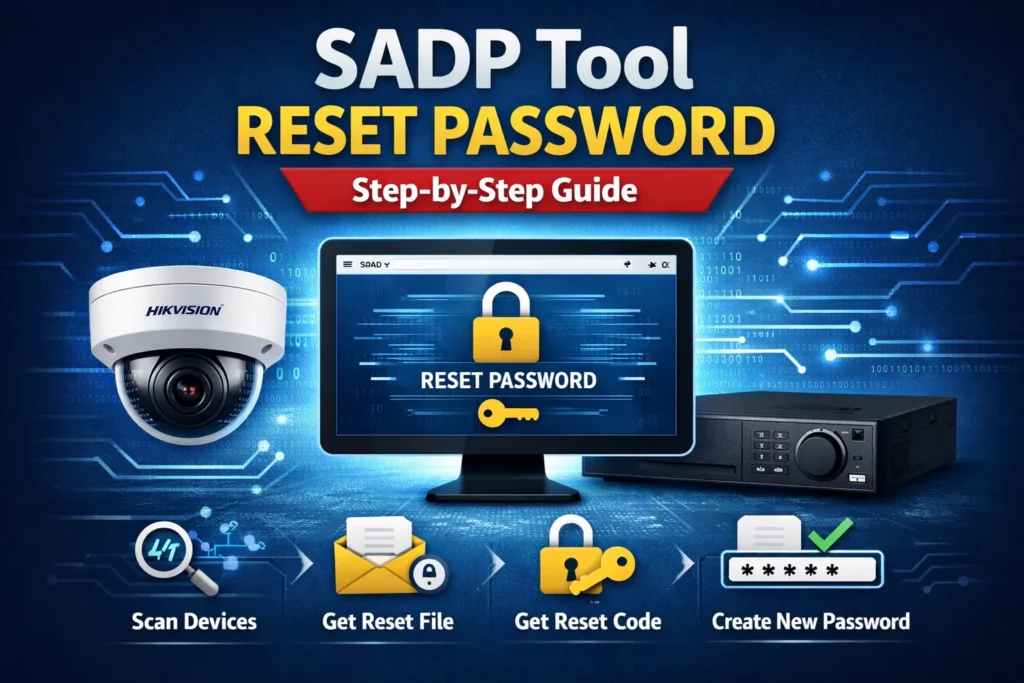
If you are locked out of a Hikvision IP camera, DVR, or NVR, SADP (Search Active Device Protocol) supports an official workflow on many models: Export / Import Secret Key (sometimes described with an XML request file). This guide walks through the pattern; exact button names and screens depend on firmware and SADP version—confirm on Hikvision’s current docs for your device.
Legal and ethics: Only reset equipment you own or are authorised to service. Read password reset, ethics, and support before proceeding.
Downloads: Get SADP from our download page (SADP.zip / SADPTool.pkg.zip and HiTools links). For mobile commissioning context, see SADP / mobile apps.
Table of contents
- Step 1: Install and open SADP
- Step 2: Detect and select your device
- Step 3: Forgot password
- Step 4: Export the request key (XML)
- Step 5: Contact Hikvision support
- Step 6: Receive the reset key
- Step 7: Enter the reset key
- Step 8: Set a new password
- Password reset successful
- Important notes
- Best practices after reset
- FAQs
- Conclusion
- Related guides
How to reset your SADP tool password
Follow these steps to reset your password using SADP and Hikvision’s official Export / Import Secret Key flow.
Step 1: Install and open SADP
- Download the SADP tool from our SADP download page linked under Downloads above (Windows
SADP.zipor MacSADPTool.pkg.zip, plus HiTools links if you need to verify the build). - Install the application on Windows or Mac (on Windows, Run as administrator is often recommended when you launch it).
- You can also use the mobile app (Hik-Partner Pro) linked under Downloads above to work with devices on your network for some tasks—desktop SADP is still what you use for this XML / secret key workflow.
- Launch SADP. The tool will scan the network and list detected Hikvision devices (use Refresh if a device just came online).
Step 2: Detect and select your device
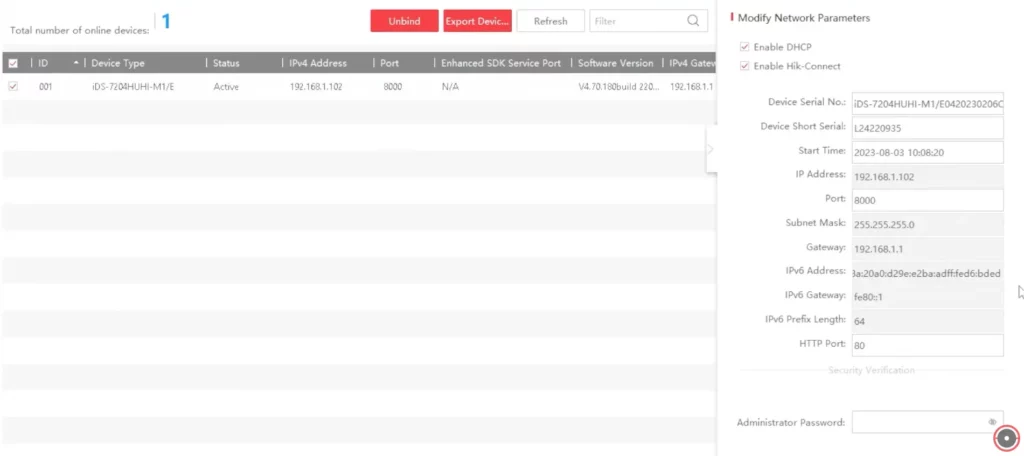
- Make sure your Hikvision device appears in the device list.
- For this workflow the device is usually Active. If it shows Inactive, you may need to activate first—see activating devices with SADP or activate Hikvision NVR.
- Tick the checkbox next to the correct device and double-check using the serial number and model.
If the device does not appear, recheck network cables, IP settings, and firewall rules. See SADP not finding cameras and Windows Firewall blocking SADP.
Step 3: Forgot password
- With the device selected, click Forgot Password.
- The reset interface opens. From the mode selection, choose Export / Import Secret Key mode (wording can vary slightly by SADP build).
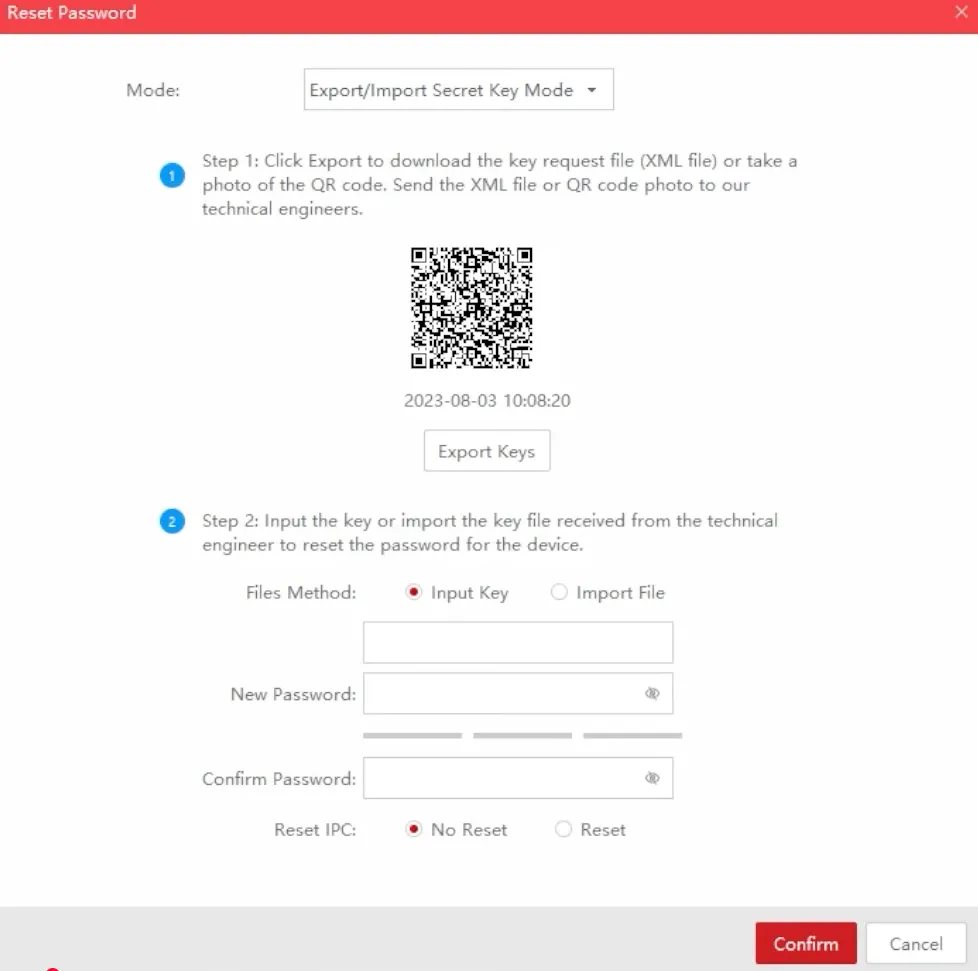
Forgot Password screen in SADP—pick Export / Import Secret Key mode.
Step 4: Export the request key (XML)
- Click Export Keys (or Export—labels vary by version).
- Choose a folder on your PC and save the file.
- SADP generates an XML request key file. It contains encrypted device information that Hikvision (or an authorised partner) uses to issue a reset response.
Important: The exported key is often time-limited. Continue to the next steps without delay.
Step 5: Contact Hikvision support
- Open Hikvision’s support area (use your regional site if your organisation standardises on another country).
- Use Contact us or Technical service for your country or region (for example India or Pakistan—pick what matches your account and warranty path).
- Note the official email, ticket, or WhatsApp (or other channel) Hikvision publishes for your region—do not use random third-party “unlock” services.
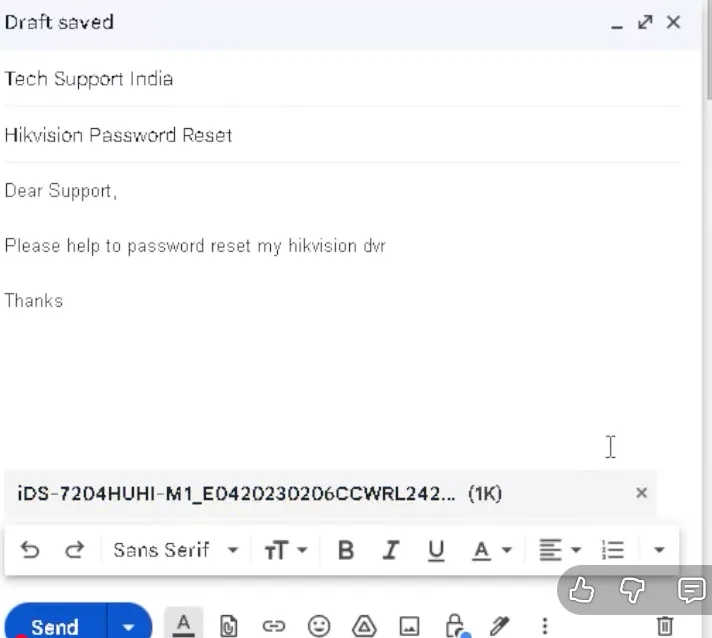
- Send the XML request file with a short message that you need an authorised password reset, and include proof of ownership if they ask.
Contact Hikvision technical support through the official channels listed for your region.
Step 6: Receive the reset key
After Hikvision (or your authorised reseller) verifies the request, you receive a reset key—often a text code. It is unique to your device and usually time-sensitive.
Step 7: Enter the reset key
- Return to SADP on the same LAN as the device.
- Select the same device again → Forgot Password → Export / Import Secret Key mode.
- Paste the key into the Input key (or Import) field exactly as provided.
Note: Uppercase and lowercase characters matter.
Step 8: Set a new password
- Enter a new password and confirm it.
- Use a strong password (letters, numbers, and symbols). SADP often shows a strength indicator—aim for the policy your site requires.
- Click Confirm / OK.
Store the new credential in a password manager or your company’s approved secret store.
Password reset successful
When the process completes, you should see a message such as:
Reset password succeeded
You can then log in to your Hikvision IP camera, DVR, or NVR web UI with the new password and verify access.
Important notes
- This pattern applies to many Hikvision IP cameras, DVRs, and NVRs—not every firmware line exposes identical menus.
- Keep the PC and device on the same network while you complete the SADP steps.
- Reset keys and request files are temporary—use them promptly.
Best practices after reset
- Save your password securely (password manager or IT-approved vault).
- Enable email or other recovery options the device offers, if appropriate.
- Keep firmware updated from official sources only (firmware updates).
- Avoid sharing admin credentials in plain chat or email.
Frequently asked questions (FAQs)
Can I reset a Hikvision password without internet?
You can often start the process on the LAN (export the request file) without internet, but getting the return key from Hikvision or a partner usually requires internet or another approved channel (email, portal, etc.).
Does SADP work on macOS?
Yes. Hikvision provides macOS packages on HiTools for many releases. Use the build that matches your OS from the official download path linked under Downloads above.
How long does a Hikvision password reset take?
It depends on verification and region. In many cases the full loop is roughly 10–30 minutes if you already have access to Hikvision support or your reseller; queues can make it longer.
Is SADP free?
Yes. SADP is free from Hikvision for detecting, activating, and managing devices on a local network. You still need authorised support for the reset key step on locked gear.
Conclusion
The Export / Import Secret Key method is a secure, officially supported way to reset a Hikvision device password when you work through proper channels. If you follow each step carefully, the process is usually smooth and reliable. If something still fails, contact Hikvision technical support or an authorised service partner with your proof of ownership.
Related guides
- Password reset, ethics, and support—linked near the top of this article
- How to use SADP
- Change IP with SADP
- Activate Hikvision NVR—linked in Step 2 above
More on SADP Tool
More articles
- How to Activate a Hikvision IP Camera
Use SADP from HiTools on your LAN to find inactive Hikvision cameras, set an admin password, verify in a browser, then tune IP and security.
- How to Activate Hikvision NVR Step by Step
Activate a Hikvision NVR with SADP: find Inactive, set password & IP, browser login, live view, add cameras on a switch.
- Change camera & NVR IPs with SADP
Change Hikvision camera and NVR IPs with SADP: requirements, step-by-step Modify workflow, DHCP off, verification, common fixes, best practices, and FAQs.
- How to Set Up and Activate a Hikvision DVR
SADP finds inactive Hikvision DVRs on the LAN: activate with a strong password, set IP/DHCP, use the web UI & optional Hik-Connect.