
IP Camera Finder Tool
Discover cameras on your local network quickly with SADP, then move straight to activation and network setup.
On this page
What Is an IP Camera Finder Tool?
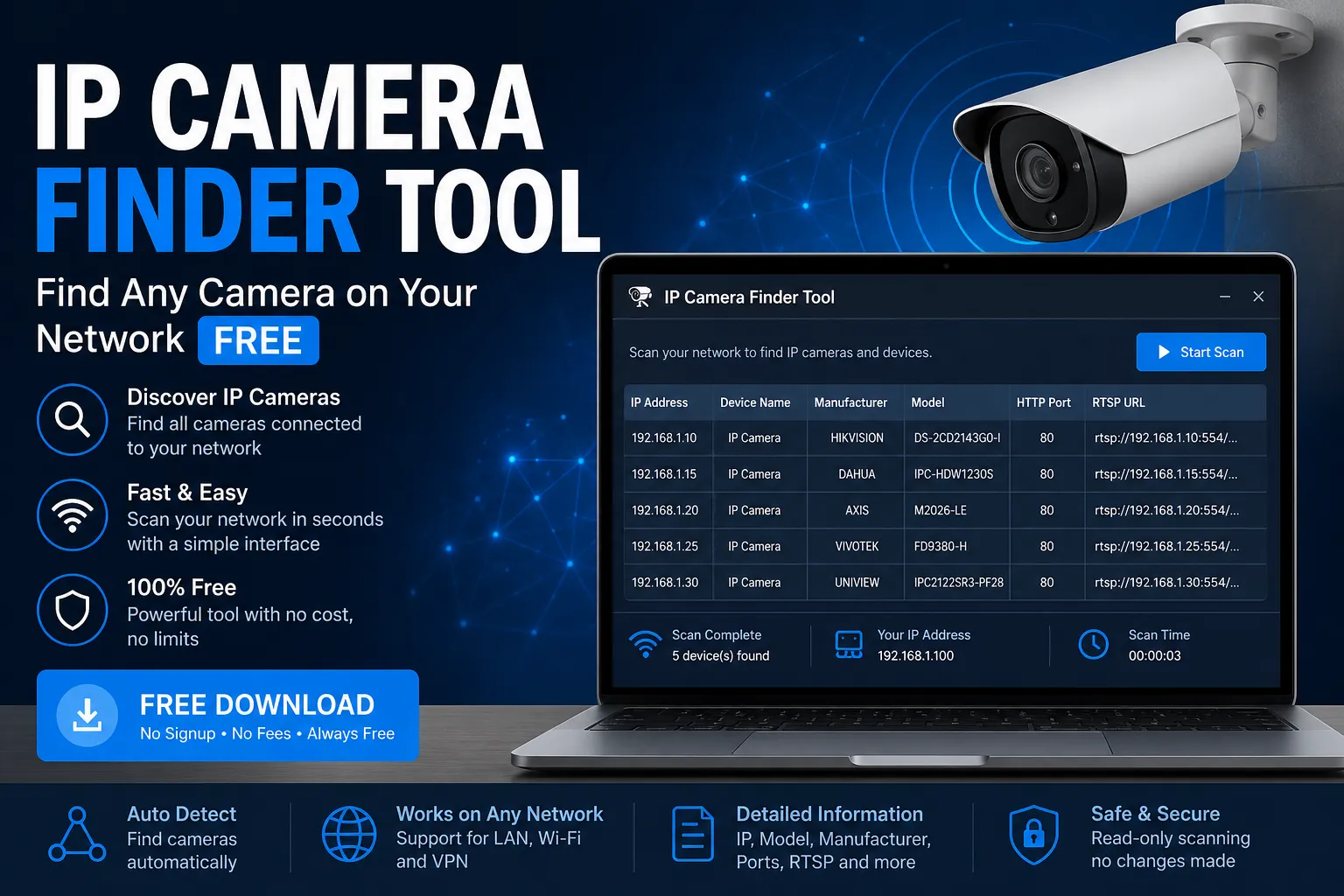
An IP camera finder tool is software that scans your local network. It finds every IP camera connected to that network. Then it shows you each camera's IP address, model name, and status.
Without this tool, finding cameras is painful. You'd have to guess IP addresses one by one. That wastes hours. Furthermore, it often doesn't even work.
With an IP camera finder app, the process takes less than 30 seconds. You simply open the tool, run a scan, and see every camera listed instantly.
Why You Need This
Whether you're setting up cameras for the first time or troubleshooting a lost connection, an IP camera finder tool is the fastest way to locate and manage every device on your network.
Common Reasons People Use an IP Camera Finder
- You forgot your camera's IP address
- A camera isn't showing up in your recorder
- You just installed new cameras and need to find them
- Your router assigned a new IP and you lost access
- You're setting up a new NVR or DVR system
- You want to check which cameras are online or offline
How SADP Works as an IP Camera Finder
SADP stands for Smart Active Discovery Protocol. It was originally built by Hikvision. However, it works as a universal IP camera finder on network for many other brands too.
SADP sends a broadcast signal across your local network. Every compatible IP camera on that network responds to the signal. As a result, SADP collects all the responses and builds a list of detected devices.
In short, SADP does what a manual IP scan can't. It talks directly to cameras using their own discovery protocol. Therefore, it finds cameras that might not show up in a regular network scan.
What SADP Shows You
- Device type — camera, NVR, DVR, or encoder
- IP address — where the device lives on your network
- Port number — what port the device uses for communication
- Firmware version — the current software version running on the camera
- Serial number — the unique device ID
- Activation status — whether the camera is set up or still needs activation
Most importantly, you can also change the camera's IP address directly from SADP. This means you don't need to log into a web browser first. In fact, this is the biggest reason most installers prefer SADP over other tools.
Supported Brands
SADP was built mainly as a Hikvision IP camera finder tool. But over time, many other brands adopted the same discovery protocol. As a result, SADP now works with a wide range of brands.
Here are the brands that work with SADP as an IP camera finder:
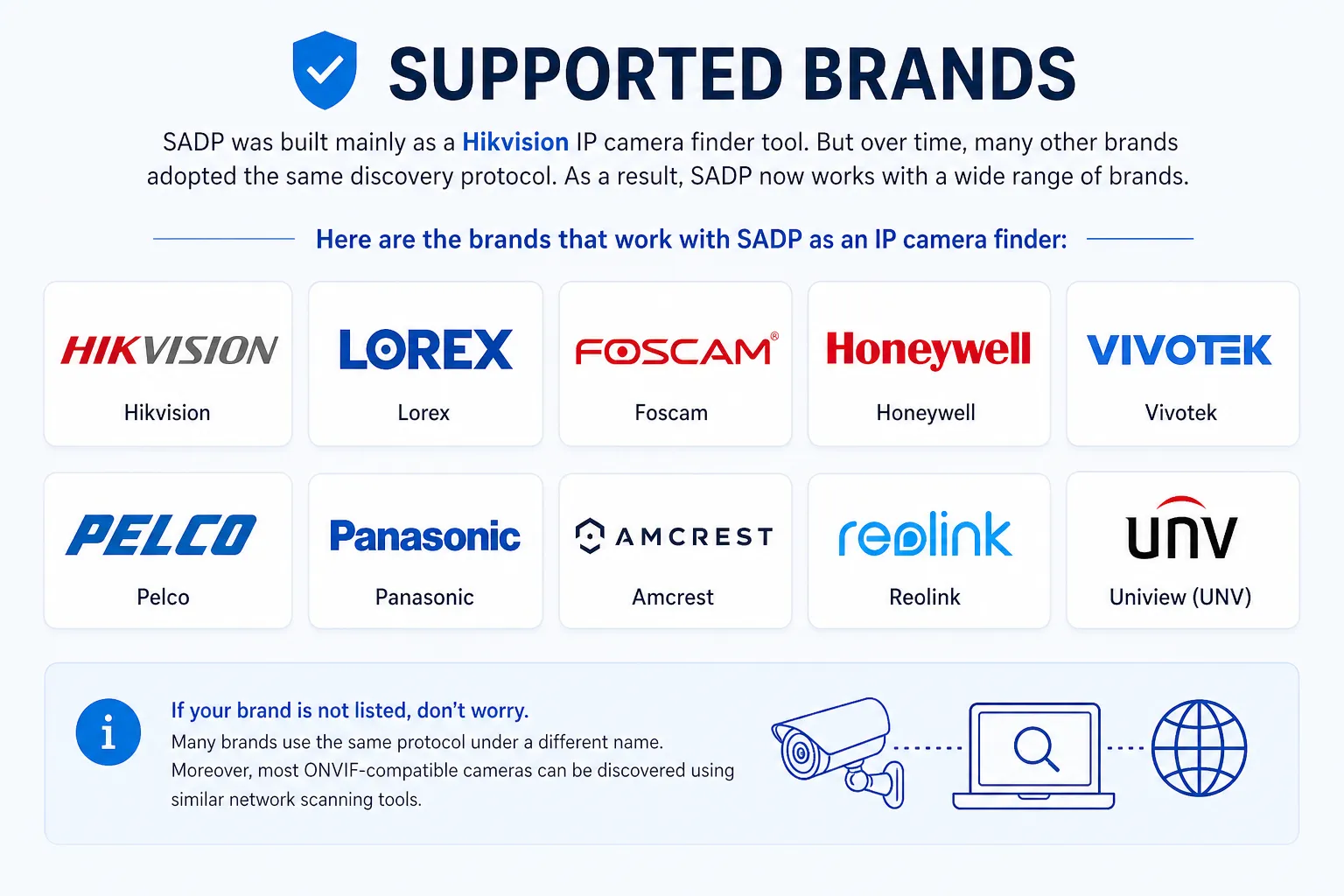
If your brand is not listed, don't worry. Many brands use the same protocol under a different name. Moreover, most ONVIF-compatible cameras can be discovered using similar network scanning tools.
IP Camera Finder Tools Compared
There are several IP camera finder software options available. Each one works slightly differently. Here's a quick comparison to help you choose the right one.
| Tool Name | Best For | Platform | Cost |
|---|---|---|---|
| SADP Tool Best overall | Hikvision, Lorex, most brands | Windows, Mac | Free |
| Foscam IP Camera Finder Tool | Foscam cameras only | Windows | Free |
| Vivotek IP Camera Finder | Vivotek cameras | Windows | Free |
| Honeywell IP Camera Finder | Honeywell security cameras | Windows | Free |
| Pelco IP Camera Finder | Pelco cameras | Windows | Free |
| Panasonic IP Camera Finder | Panasonic cameras | Windows | Free |
| Advanced IP Scanner | General network scan | Windows | Free |
| Angry IP Scanner | Cross-platform scanning | Win, Mac, Linux | Free |
In most cases, SADP is the best choice. It works across the most brands. It's lightweight, fast, and completely free. Furthermore, it can activate cameras and change settings — something most other tools can't do.
What About IP Camera Finder v1.0.0.5?
The IP camera finder v1.0.0.5 is an older version of the SADP software. Some users still search for this specific version because it worked on older operating systems. However, the latest SADP version is better in every way. It supports more cameras, runs faster, and works on modern Windows and Mac systems.
Is There an IP Camera Finder Online?
Some websites claim to offer an IP camera finder online. However, most of these are not reliable. They can only scan from their own servers, not from inside your local network. Therefore, they usually can't find your private cameras. A local tool like SADP is always more accurate for finding cameras on your network.
Step-by-Step Guide: Using SADP as Your IP Camera Finder
Follow these simple steps to find every IP camera on your network. The whole process takes just a few minutes.
1. Connect to the Same Network
First, make sure your computer is on the same network as your cameras. Plug your computer into the same router or switch that your cameras use. Wi-Fi works too, but a wired connection is more reliable.
2. Download and Install SADP Tool
Next, download the SADP tool from our download section below. Choose the version for your operating system. Windows users should get the Windows installer. Mac users should grab the Mac version. The install is simple and takes under a minute.
3. Open SADP and Run a Scan
Once installed, open SADP. It starts scanning automatically. You don't need to press any buttons. Within seconds, all cameras on your network appear in the list.
4. Review Your Camera List
Now look at the list of discovered devices. Each row shows one camera or device. You can see its IP address, device type, firmware version, and activation status all in one place.
5. Activate or Modify as Needed
Finally, click on any camera to work with it. You can activate new cameras, change IP addresses, or reset passwords directly from SADP. No need to open a web browser or log in separately.
Download IP Camera Finder Software Free
Get the latest version of SADP Tool. It works on both Windows and Mac. The download is completely free and takes less than a minute to install.
Windows
SADP Tool for Windows
Windows 7, 8, 10, 11 supported
Mac
SADP Tool for Mac
macOS 10.12 and above
IP Camera Finder for Windows 10
SADP Tool works perfectly on Windows 10. Just download the Windows installer and run it. No extra drivers or software needed. It works straight out of the box.
IP Camera Finder for Mac
The IP camera finder Mac version is just as powerful as the Windows version. It supports all the same features. If you're on a Mac, simply download the Mac version from the link above.
Frequently Asked Questions
Here are answers to the most common questions about IP camera finder tools.
What is the best IP camera finder tool? +
SADP Tool is widely considered the best free IP camera finder. It's fast, works with many brands, and lets you change camera settings directly from the tool. Moreover, it's completely free and works on both Windows and Mac.
How do I find the IP address of my camera without the finder tool? +
Without a finder tool, you'd have to check your router's connected devices list. However, this often doesn't show camera model names. Therefore, it's much harder to identify which device is your camera. A dedicated IP camera finder app like SADP makes this much simpler.
Does the IP camera finder work on Wi-Fi? +
Yes. SADP works on both wired and wireless networks. However, a wired (Ethernet) connection gives better results. This is because some Wi-Fi routers block broadcast packets, which SADP uses to detect cameras. If you get no results on Wi-Fi, try connecting your computer to the router with a cable.
Is SADP Tool safe to download? +
Yes. SADP is an official tool developed by Hikvision, one of the world's largest security camera manufacturers. It is safe, virus-free, and widely used by security professionals worldwide. Always download it from a trusted source like this website to be sure.
Will SADP work with my Lorex IP camera finder needs? +
Yes. Lorex cameras use the same network discovery protocol as Hikvision. Therefore, SADP works as an excellent Lorex IP camera finder. Many Lorex users rely on SADP to find and manage their cameras because Lorex's own tools are more limited.
Can I use SADP to find Foscam cameras? +
SADP can detect many Foscam cameras that use standard network protocols. However, Foscam also has its own dedicated Foscam IP Camera Finder Tool. If SADP doesn't find your Foscam camera, try Foscam's own search tool as an alternative.
Why does my IP camera finder show no devices? +
There are a few common reasons:
- Your computer and camera are on different subnets
- A firewall is blocking SADP's broadcast packets
- Your camera is turned off or not connected
- Your antivirus software is blocking the tool
- The camera is on a different VLAN from your computer
Try disabling your firewall temporarily and running the scan again.
Can I use an IP camera finder app on my phone? +
Some apps claim to find IP cameras on mobile devices. However, most of these work better on a computer. SADP is currently available for Windows and Mac only. For mobile, you can use apps like Fing or Network Scanner to see what devices are on your network. But for full camera management, a desktop tool like SADP is recommended.