
sadp basics
Change camera & NVR IPs with SADP
Change Hikvision camera and NVR IPs with SADP: requirements, step-by-step Modify workflow, DHCP off, verification, common fixes, best practices, and FAQs.
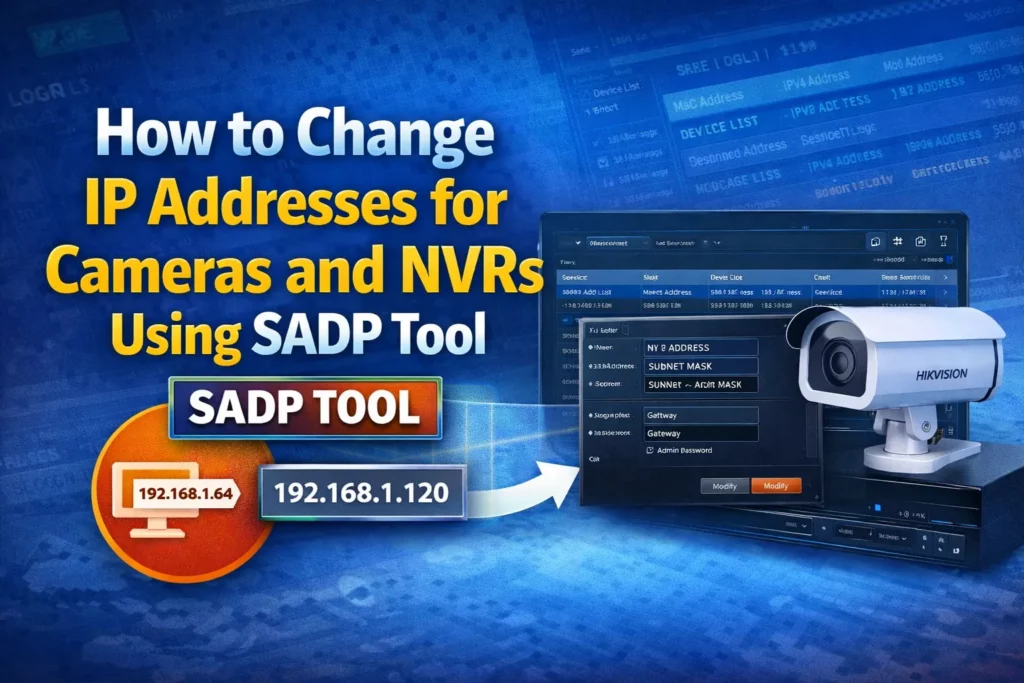
Changing the IP address of Hikvision cameras and NVRs is one of the most common tasks during CCTV installation and troubleshooting. Sadptool makes this process fast, secure, and beginner friendly.
In this guide, you’ll learn how to change IP addresses for Hikvision cameras and NVRs using SADP Tool, including troubleshooting tips and best practices. You need to activate a Hikvision NVR (and other devices) before changing its IP when they appear as inactive in SADP—see How to activate a Hikvision NVR step by step or the shorter activating devices with SADP overview.
Table of contents
Why you may need to change IP address
You might need to change the IP address of a camera or NVR when:
- Multiple devices have the same default IP
- The device is on a different subnet
- Migrating from DHCP to static IP
- Network conflicts cause cameras to go offline
- Installing devices in a new network environment
Requirements before you start
Make sure you have the following:
- SADP Tool installed (Windows or Mac)
- Camera/NVR powered on and connected to the same network
- Device admin password
- PC or laptop connected to the same LAN
For deeper networking context (masks, gateways, VLANs), see changing IP, mask, and gateway from SADP.
How to change IP address using SADP Tool
Step 1: Launch SADP Tool
Open the SADP Tool on your computer. It will automatically scan the local network and list Hikvision devices (refresh or wait for the scan cycle if the list is empty).
Step 2: Select the device
From the list:
- Click on the camera or NVR you want to modify
- Device details will appear in the right panel (exact layout depends on your SADP version)
Step 3: Disable DHCP (optional but recommended)
If the device is using DHCP:
- Uncheck Enable DHCP
- This allows you to assign a static IP
Step 4: Enter new IP address details
Fill in the following fields:
- IP address (e.g.
192.168.1.120) - Subnet mask (usually
255.255.255.0) - Gateway (router IP, e.g.
192.168.1.1) - DNS server (optional but recommended)
⚠️ Make sure the IP address is within your network range and does not conflict with another host.
Step 5: Enter admin password
In the password field:
- Enter the device’s admin password
- This is required to authorize changes
Step 6: Click “Modify”
Click Modify to save changes. Within a few seconds, the device IP should update. If the UI offers Save / OK instead of Modify, use the control your build shows.
The screenshot below shows a typical network-edit area in SADP—IP, mask, gateway, DNS, and the action to apply changes (labels vary by version).
How to verify IP address change
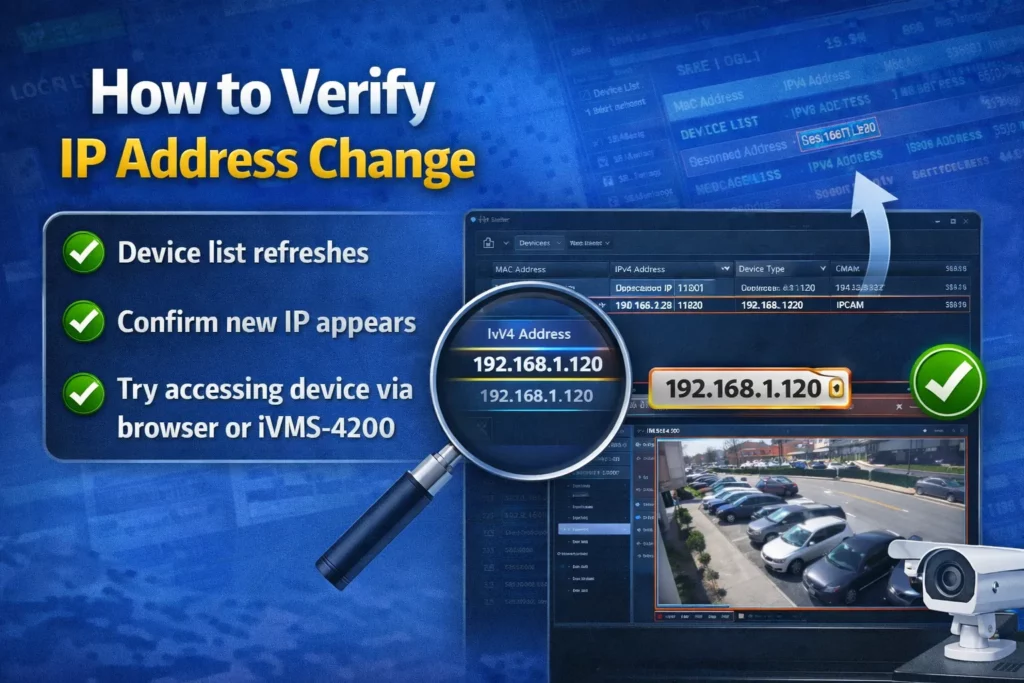
After modification:
- The device list refreshes automatically (or click Refresh)
- Confirm the new IP appears in the list
- Try accessing the device via a browser or iVMS-4200 from Hikvision’s official HiTools pages
Common problems & solutions
Device not showing in SADP
Fix:
- Disable firewall temporarily or allow SADP through Windows Firewall
- Ensure PC and device are on the same subnet
- Use wired Ethernet instead of Wi-Fi when possible
Password error while modifying IP
Fix:
- Make sure the admin password is correct
- If you are locked out, use the official Hikvision-supported workflow (e.g. GUID/XML) and read the ethics note on password reset, ethics, and support
IP change successful but device offline
Fix:
- Check gateway and subnet mask
- Ping the new IP from your PC
- Restart the device
Best practices for IP addressing
- Use static IPs for cameras and NVRs when your design calls for predictable management addresses
- Avoid overlapping IP ranges
- Keep a documented IP list
- Reserve IPs in router DHCP settings where you use DHCP alongside static devices
- Always use strong admin passwords
Can you change IP address without SADP Tool?
Yes. Alternatives include:
- Web browser access (if the current IP is known)
- iVMS-4200 software
- Router DHCP reservation
However, SADP Tool is often the fastest and most reliable option, especially for new or unknown devices on the LAN.
Frequently asked questions (FAQs)
Is SADP Tool free?
Yes, it is completely free from Hikvision (download from official HiTools sources only).
Can SADP Tool work on Mac?
Yes, macOS builds are available (check the official listing for Intel vs Apple Silicon compatibility for your release).
Can I change IP for multiple devices at once?
Yes, SADP supports bulk IP modification on many builds—select multiple devices and follow the batch workflow your version provides.
Conclusion
The SADP Tool is an essential utility for CCTV installers and network technicians. Knowing how to properly change IP addresses helps stable connectivity, better security, and smoother camera management. If you work with Hikvision cameras or NVRs, mastering SADP Tool will save time on every installation.
Always confirm steps and downloads on official Hikvision channels.
More on SADP Tool
More articles
- How to Activate a Hikvision IP Camera
Use SADP from HiTools on your LAN to find inactive Hikvision cameras, set an admin password, verify in a browser, then tune IP and security.
- How to Activate Hikvision NVR Step by Step
Activate a Hikvision NVR with SADP: find Inactive, set password & IP, browser login, live view, add cameras on a switch.
- How to Set Up and Activate a Hikvision DVR
SADP finds inactive Hikvision DVRs on the LAN: activate with a strong password, set IP/DHCP, use the web UI & optional Hik-Connect.
- Install SADP on Windows 10 (Hikvision)
Install Hikvision SADP on Windows 10: official download, Run as administrator, Npcap, firewall allowances, and fixes when SADP won’t detect devices.