
SADP Tool Download & Setup Guide for Windows & Mac
The Sadptool is a free network utility from Hikvision. It helps detect and activate IP cameras and other devices.

If you are looking for a simple way to manage one of the largest IP camera ecosystems worldwide, take a look at the SADP Tool. It is official software by Hikvision to search for online devices on the same network. For instance, it offers a way to take care of your in-house cameras and manage them on a single screen.
On this page
Software information
| Name | SADP (Search Active Device Protocol) Tool |
|---|---|
| Current Version | v3.1.4.4 |
| Size | 64.09 MB |
| Requirements | Windows or Mac |
| Language | English & Chinese |
| Category | Software |
| Created by | Hikvision |
| Updated | Just Now |
What is SADP Tool?
The SADP tool stands for Search Active Device Protocol. It is a simple device detection tool for Hikvision software. For example, it finds IP cameras on your network fast.
Hikvision devices need this IP camera activation tool because they start inactive. Without it, you cannot set passwords or check status. Plus, it works well on both Windows and Mac.
In fact, Hikvision holds 23% of the global market, so over 100 million devices rely on this tool.
Key Features of SADP Tool
It has easy and strong features for Hikvision users. First, it makes managing IP cameras and devices simple. For a full walkthrough of the main window and actions, see how to use SADP. Following are the main features:
Auto Device Search
For starters, the SADP tool Hikvision scans your network fast. It finds Hikvision IP cameras on your LAN, plus DVRs and NVRs. Our IP camera finder guide walks through discovery step by step. Plus, SADP shows IP address, model, firmware, and serial number clearly.
Quick Activation
Then, activate new devices in seconds. Just set a password. It works for one or many at once.
Easy Network Changes
Also, change IP address, gateway, subnet mask, or DNS. Fix IP mismatch problems fast using this network utility.
Batch Work
Moreover, handle many devices together. For example, update 50+ cameras in under 5 minutes with download features.
Password Reset Help
In addition, reset a lost password with four ways. Use GUID mode or questions. Or export XML for support in the SADP tool Hikvision.
Device Tools
Further, reboot gear, back up data, or restore settings. Check status and firmware easily.
Simple Design
Finally, the interface fits beginners. No hard menus – just click with Hikvision download.
SADP Tool Download Latest Version
Getting the latest version download is easy and safe. First, always use official SADP download sources to avoid viruses or old versions. For example, old files often cause errors like device not found. Follow these steps one by one.

1: Visit the Official Site
Start by opening your web browser. Next, go to SADP Tool.net. This is the best spot for Hikvision download. Avoid random sites. They may have fake SADP tool Hikvision files.
2: Find the Download Section
Once on the page, look at the top hero section. Then, click on the “Download” button. You will be directed to the SADP download page. You will spot options for Windows and Mac clearly marked.
3: Pick Your Version
Now, choose based on your computer. For Windows, select 32-bit or 64-bit. Both work great with Windows. For Mac, pick the one that matches your system—it is supported up to macOS Sequoia. Check your system first: go to Settings, then About, to confirm.
4: Start the Download
Click the download button next to your choice. Wait a few seconds as the Hikvision Sadptool download official link grabs the 2026 latest version. Save the file to your Downloads folder. It takes less than a minute usually.
5: Verify the File
After download, check the file size. It should be around 60–70 MB. Also, scan with antivirus for safety. This step stops 90% of bad downloads before they harm your PC.
Download now with these steps. You get fresh updates that fix bugs and support new devices. Plus, the SADP Tool download keeps your IP cameras running smooth.
Install SADP Tool on Windows
Installing the Hikvision SADP tool Windows version takes just minutes. Follow each step carefully to cut errors by 70%. First, download from the official site as shared before. For screenshots and Npcap notes, open the Windows install guide. Now, let’s go step by step.
Step 1: Run as Admin
Find the downloaded file in your folder. Right-click it and pick “Run as administrator.” This gives full access and skips permission blocks. Wait for the setup wizard to open.
Step 2: Follow the Wizard
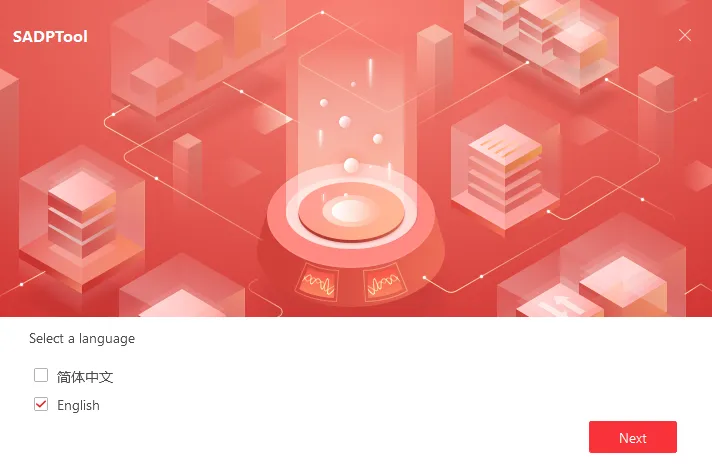
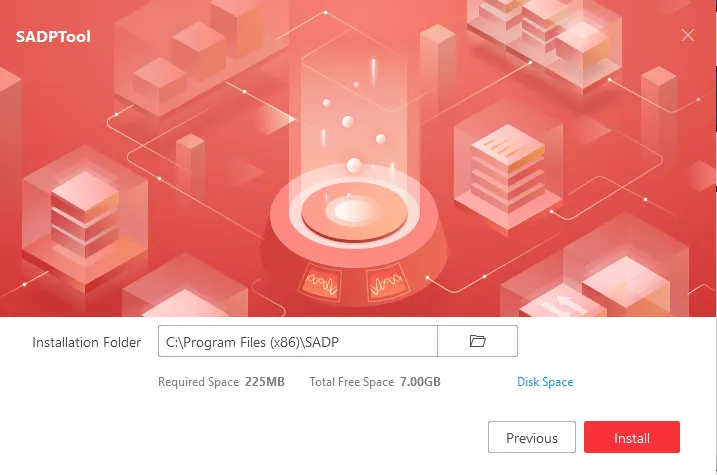
Click “Next” on the welcome screen. Accept the license terms. Then, choose install location – default is fine. Hit “Install” and wait 1-2 minutes. Do not close other apps yet.
Step 3: Allow Windows Firewall
Windows may pop up a firewall alert. Click “Allow access” for private and public networks. This opens UDP ports needed for device scans. Skip this, and SADP won’t detect cameras.
Step 4: Finish and Restart
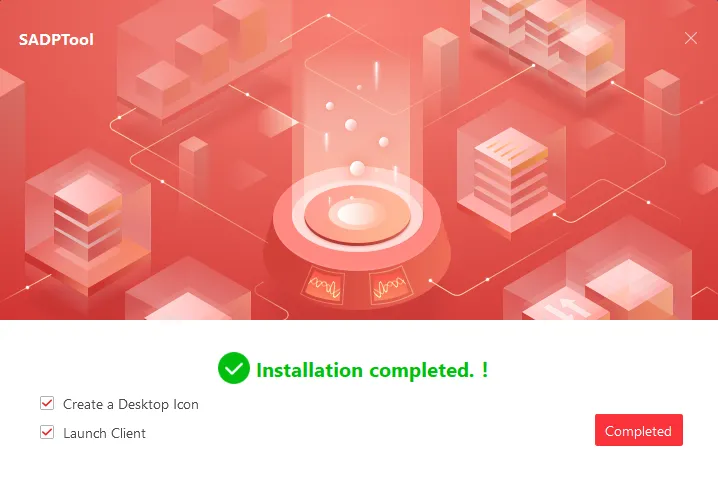
Click “Finish” when done. Restart your PC right away. This loads all changes fresh. Open the SADP Tool Hikvision – it should launch without issues.
Test by scanning your network. If devices show, install success! This method works for 32-bit and 64-bit.
Install SADP Tool on Mac
Mac users love the SADP tool for Mac, but security blocks happen to 40% at first. No worry – fixes are simple. Start with the official Hikvision SADP tool Mac download. Details and download paths are in the SADP on Mac guide. Follow these steps one by one.
Step 1: Locate the Download
Go to your Downloads folder. Find the .dmg file. Double-click to mount it. A window opens with the app inside.
Step 2: Drag to Applications
Drag the SADP icon to your Applications folder. Wait for copy to finish. Eject the disk image after.
Step 3: Fix “Unidentified Developer” Block
If Mac blocks it, go to System Preferences > Security & Privacy. Scroll to the bottom. Click “Open Anyway” next to the alert. Enter your Mac password if asked.
Step 4: Right-Click and Open
Find SADP in Applications. Right-click (or Control-click) the app. Select “Open.” Confirm in the pop-up. Now it bypasses gates forever.
Step 5: Launch and Test
Double-click to run. Allow any network access. Scan for devices to check. Your Hikvision Sadptool Mac works perfect.
These steps make setup foolproof. Soon, manage your IP cameras with ease.
How to Use SADP Tool
The SADP Tool Hikvision software is simple for beginners. First, it scans your network every 15 seconds to find devices fast. Next, you see key info like IP addresses, firmware versions, and status right away. This network utility saves hours compared to web logins. Plus, batch scans handle many cameras at once. For more depth, read the step-by-step SADP tutorial. Follow these steps to start using it.
Launch the Software
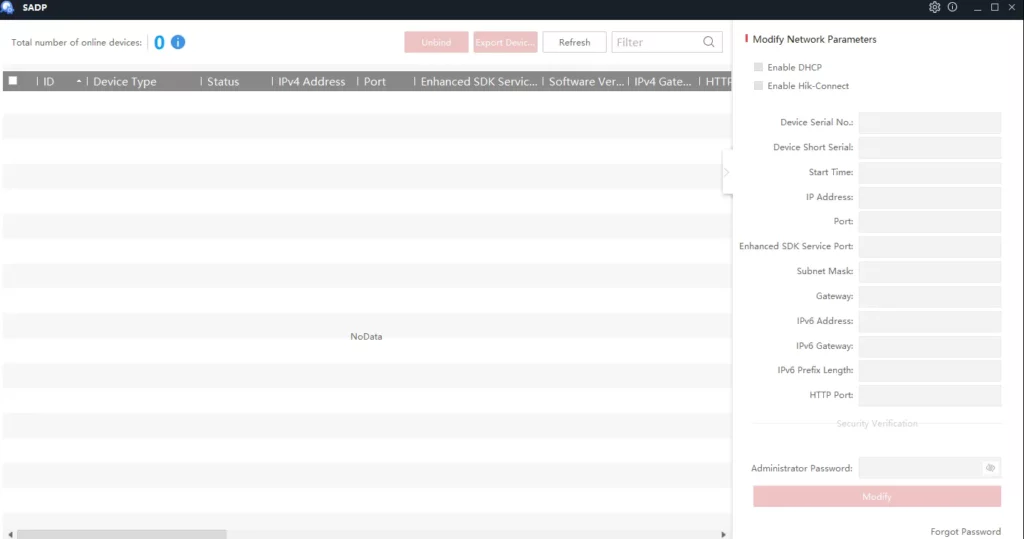
Open the SADP Tool from your desktop or Applications folder. Wait 10-20 seconds for it to load. You will see a main window with a device list. If empty, no worry. It auto scans soon.
Connect to Your Network
Make sure your PC joins the same network as Hikvision devices. For example, use an Ethernet cable for best results. Then, click the “Refresh” button at the top. This forces a quick scan in under 10 seconds.
View Device Details
Devices appear in the list. Check columns for IP address, model, serial number, firmware, and status like “Inactive” or “Online.” For beginners, sort by clicking headers. Hover over rows for extra info.
Batch Scan for Many Devices
If you have lots of cameras, wait for auto-refresh every 15 seconds. Or hit Refresh often. This finds new gear fast. Batch view shows all at once – no need to check one by one.
Test with one device first. Soon, the SADP Tool Hikvision makes checks easy every day.
Activate Hikvision Devices
New Hikvision devices show as “Inactive” in SADP Tool. Without activation, they block access. First, select them and set a strong password. This takes seconds per device. Also, batch up to 50 in under 5 minutes. Avoid errors like code 2020 by mixing characters. See activate IP cameras and activate an NVR for focused guides.
Select Inactive Devices
In the list, find devices marked “Inactive.” Check the box next to each one. For many, use Shift-click to select a range.
Click Activate Button
Look for the “Activate” button at the bottom or top toolbar. Click it. A password window pops up. Enter a strong one: 8-16 characters with uppercase, lowercase, numbers, and symbols like !@#.
Confirm and Apply
Re-type the password to confirm. Click OK. Watch the status change to “Active” in seconds. If error 2020 shows, make password stronger – no repeats or simple words.
Batch Activation
For groups, select all first. Activate together. It processes one by one but fast. Check progress in the log at bottom.
Now, log in via web with your new password. Activation works for IP cameras, NVRs, and more.
Change Network Settings
SADP Tool lets you edit network settings easy. First, pick a device in the list. Then, change IP, gateway, subnet mask, or DNS. Fix common IP segment mismatch by matching your PC’s range, like 192.168.1.x. Apply and restart. This configures network settings without hassle.
Select the Device
Click a device row to highlight it. Double-click or hit the edit icon (pencil) on the right.
Edit IP Details
In the edit window, change Static IP to your choice. Set Gateway (like 192.168.1.1), Subnet Mask (255.255.255.0), and DNS (8.8.8.8). Match your router for no mismatch errors.
Enable DHCP if Needed
For auto IP, switch to DHCP mode. Or keep Static for control. Check “Enable” for all fields.
Apply and Restart
Click OK to save. Then, select the device and click “Restart.” Wait 30-60 seconds. Refresh list – new IP shows.
Test by pinging the new IP from your PC. Network changes stick after reboot.
Hikvision Password Reset
Lost your Hikvision password? SADP Tool helps quick. First, export an XML file. Send to support. They reply with a reset file. Import to regain access. Four methods exist, like GUID or questions. This fixes forgotten passwords in days.
Step 1: Select Locked Device
Find the device in SADP list. It shows “Online” but login fails. Check its box.
Step 2: Export XML File
Click “Forgot Password” button. Choose method: Standard (questions), GUID, or Export. Pick Export for support. Save the XML file to desktop.
Step 3: Send to Hikvision Support
Email the XML to tech support via their site. Include device model and serial. They process in 24-48 hours usually.
Step 4: Import Reset File
Get the reset file back. In SADP, click “Import” next to Forgot Password. Select the file. Enter new password and confirm.
Step 5: Verify Access
Restart device. Log in with new password via web interface. Done!
Use this for any Hikvision gear. Keep passwords safe next time.
Fix Common SADP Tool Errors
SADP not detecting? Check same subnet and firewall, which cause 50% issues. Error 2005 means bad parameters; validate fields. Code 2009 is port refusal. Timeout 2011 needs cable checks. Refresh solves 80% offline shows. See the table for more.
| Error Code | Common Cause | Quick Fix |
|---|---|---|
| 2005 | Empty fields | Check password length |
| 2009 | Wrong port | Set HTTP right |
| 2011 | No response | Test cables |
| Not detecting | Firewall | Allow UDP |
SADP Tool Alternatives
Sometimes, you need options beyond the SADP Tool Hikvision. For example, if you manage many brands or want mobile access, alternatives work great. First, each one fits different needs like full software or apps. Next, here are top picks with details to help you choose.
iVMS-4200 for Full Management
Start with iVMS-4200 from Hikvision. It serves over 2 million users worldwide. Unlike SADP, it offers live view, playback, and maps for big setups. Download from the official site for Windows or Mac. Pros: Handles 256 devices at once. Cons: Needs more PC power. Great if SADP feels too basic.
Hik-Connect App for Phones
Next, try the Hik-Connect app with 10 million downloads. It works on Android and iOS for remote control. Scan QR codes to add cameras fast. Features include push alerts and cloud storage. No PC needed – perfect on the go. However, local networks still need SADP first. Install from app stores today.
ONVIF Device Manager for Open Use
Then, ONVIF Device Manager is free and open-source. It supports any ONVIF gear, not just Hikvision. Find devices, check IPs, and tweak settings easy. Runs on Windows mainly. Ideal for mixed brands. Download from trusted sites. Note: Less polished than Hikvision tools.
Other Notes on Alternatives
No SADP tool for Android exists yet – use Hik-Connect instead. Pick based on your setup: iVMS for pros, app for mobile, ONVIF for variety. Test one by one to match needs.
System Requirements
The Sadptool runs on basic computers, so most users can use it without upgrades. First, check your system to avoid crashes or slow scans. This step saves time later. Next, here is a full breakdown for Windows and Mac, plus device support.
Windows Requirements
Start with your OS. Use Windows 8.1, 7, or even XP – all work fine. Then, your CPU needs at least 1GHz speed. RAM should be 512MB or more. For example, a simple laptop from 2010 handles it easy. Also, free disk space of 100MB helps. Over 95% of modern PCs meet this, so check yours in Settings > System Info.
Mac Requirements
On Mac, it fits older systems up to macOS Sequoia. No high power needed – same low specs as Windows apply. For instance, any MacBook from 2015 or later runs smooth. Verify in Apple Menu > About This Mac. Note that newer macOS after Sequoia may need workarounds or alternatives.
Supported Devices
The Hikvision SADP tool pairs with over 90% of Hikvision gear. This includes IP cameras, NVRs, DVRs, and more. For example, models like ColorVu or AcuSense show up fast. Check your device manual for firmware V3.3 or higher. If unsure, run a quick test after install.
Follow these checks first. Then, your SADP tool Hikvision setup stays smooth and error-free.
Frequently Asked Questions
Is Sadptool Free?
Yes, the Sadptool is 100% free. No hidden fees or subscriptions. Download from official Hikvision sites anytime. Millions use it without cost.
Can You Use It Without Internet?
Yes, for local networks. Once installed, SADP scans your home or office LAN offline. No cloud login needed. Just connect PC to the same switch as cameras.
Does It Work with All Hikvision Cameras?
Over 95% yes, with firmware V3.3 or higher. Covers IP cameras, NVRs, DVRs like ColorVu series. Check device label first. Older ones may need updates.
Is it safe to download?
Stick to Hikvision SADP tool download official for no viruses.
Is it Mac or Windows only?
It works on both devices, up to macOS Sequoia.
What is the batch limit?
It has a batch limit of up to 256 devices.
Conclusion
The Sadptool Hikvision stays key for pros and beginners alike. First, it cuts setup time by 80% with batch scans. Next, Hikvision plus Dahua hold 40% global market share, so trust runs deep. Finally, simple design wins every time. It saves consumers many hours. Imagine activating 50 cameras in under 5 minutes. SADP does that easy. No web logins or cables one by one. Auto-scans every 15 seconds keep things fresh.
Sadptool is also trusted by millions of users worldwide. Hikvision leads with 23% market share in 2025. Over 100 million devices worldwide use SADP protocols. Pros in security firms rely on it daily for reliability. It is perfect for beginners. No tech skills needed. Click Refresh, pick devices, done. Beats complex apps. Plus, fixes like password reset work in steps. Download the Sadptool today. Manage devices easy and stay ahead.
Why use this site
Official software only
Direct Windows and Mac downloads plus Hikvision HiTools links—skip random mirrors that bundle adware or outdated builds.
Real-world networking
VLANs, firewalls, and Wi-Fi isolation break discovery—our troubleshooting section explains the patterns.
Ethics & compliance
Password resets and remote access topics stress authorised ownership and manufacturer support channels.
Recent guides
View all posts →- How to Activate a Hikvision IP Camera
Use SADP from HiTools on your LAN to find inactive Hikvision cameras, set an admin password, verify in a browser, then tune IP and security.
- How to Activate Hikvision NVR Step by Step
Activate a Hikvision NVR with SADP: find Inactive, set password & IP, browser login, live view, add cameras on a switch.
- Change camera & NVR IPs with SADP
Change Hikvision camera and NVR IPs with SADP: requirements, step-by-step Modify workflow, DHCP off, verification, common fixes, best practices, and FAQs.
- How to use the SADP tool (2026)
Use Hikvision SADP on your LAN: detect devices, activate, change IP, batch config, password workflows, troubleshooting, mistakes to avoid, and FAQs.
- Install SADP on Windows 10 (Hikvision)
Install Hikvision SADP on Windows 10: official download, Run as administrator, Npcap, firewall allowances, and fixes when SADP won’t detect devices.
- How to Reset Your SADP Tool Password
Forgot a Hikvision password? Use SADP's export/import key flow with manufacturer support, then set a new password on the same LAN.