
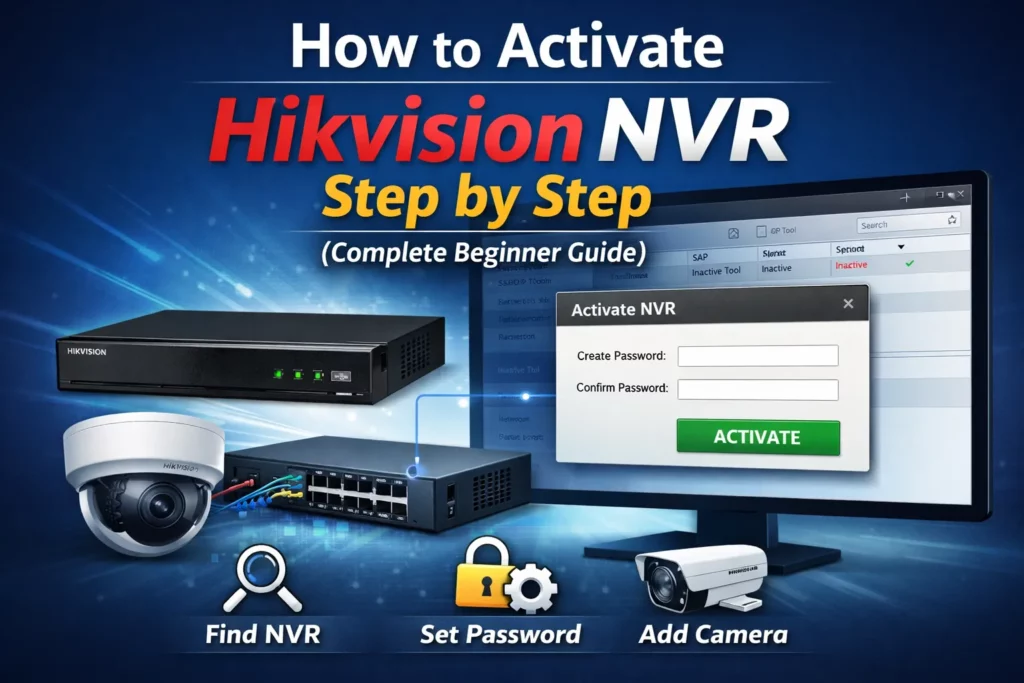
How to Activate Hikvision NVR Step by Step (Beginners Guide)
Activating a Hikvision NVR is simple if you follow the right steps. In this guide, you will learn how to activate Hikvision NVR using a computer.
We will reset the NVR, activate it again, and then add a camera. This guide uses very simple words, short sentences, and clear steps.
So even beginners can follow easily.
What You Need Before Starting
Before you begin, make sure you have the following:
- A Hikvision NVR
- At least one Hikvision camera
- A network switch
- A computer or laptop
- Sadptool installed on your computer
- All devices connected to the same network
This setup makes the process easier and faster.
Network Setup Used in This Guide
Here is the basic setup:
- NVR connected to a switch
- Camera connected to the same switch
- Computer connected to the same switch
Because everything is on one network, communication works smoothly.
Step 1: Restore Hikvision NVR to Factory Default
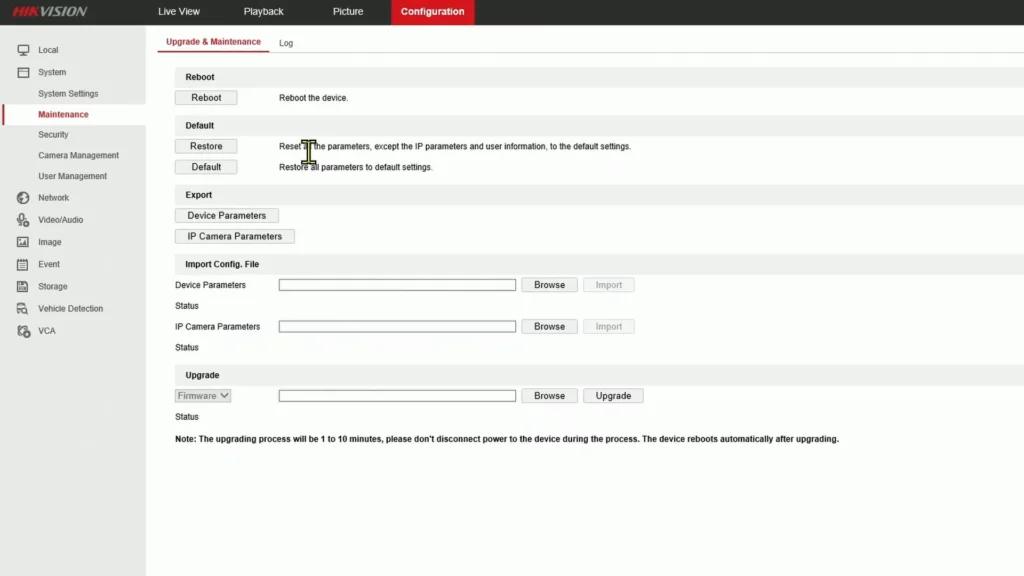
First, we reset the NVR.
- Login to the NVR menu
- Go to Configuration
- Click Maintenance
- Select Restore to Factory Default
- Choose Restore All Parameters
- Click Restore
Now wait.
The NVR will reboot. It will also get a new IP address.
Step 2: Why the Old IP Address Will Not Work
After reset:
- The old IP address is gone
- The browser cannot find the NVR
- This is normal behavior
So what do we do next? We use the Sadptool.
Step 3: Find Inactive NVR Using SADP Tool
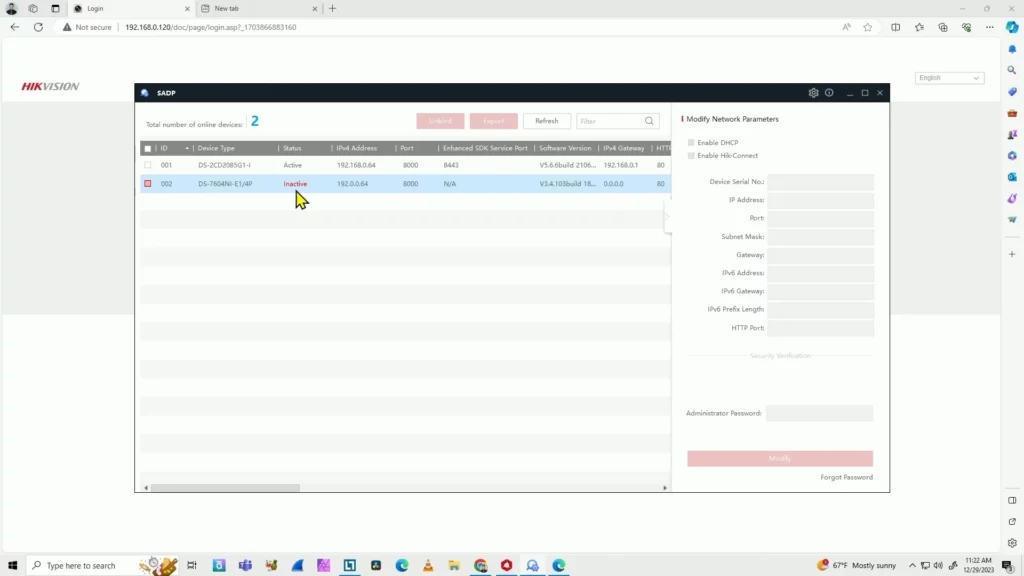
The SADP Tool helps you find Hikvision devices on the network.
Follow these steps:
- Open the SADP Tool
- Click Refresh
- Wait until the NVR appears
- Look at the Status column
You will see the NVR marked as Inactive.
This means it needs activation.
Step 4: Activate Hikvision NVR in Sadptool
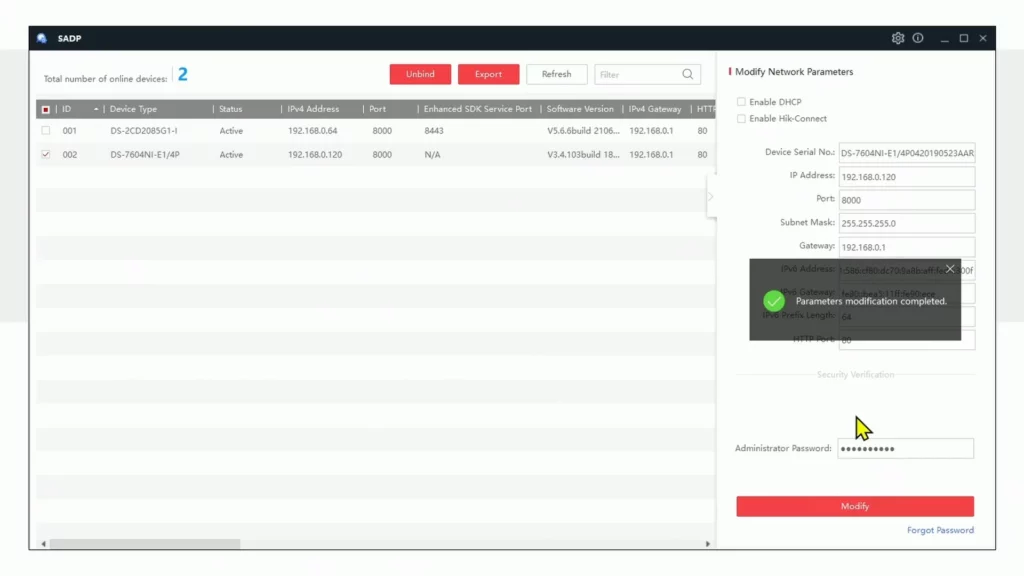
Now comes the main step.
- Select the inactive NVR
- Click Activate
- Create a strong password
- Re-enter the password
- Click Activate
Wait a few seconds.
The NVR status will change to Active.
Step 5: Change NVR IP Address to Match Your Network
After activation:
- The NVR IP may not match your network
- This can cause access issues
So you must change ip.
Steps:
- Select the NVR in SADP Tool
- Enter a new IP address
- Enter the correct Gateway
- Type the NVR password
- Click Modify
You will see a success message.
Now the NVR is ready.
Step 6: Login to Hikvision NVR from Browser
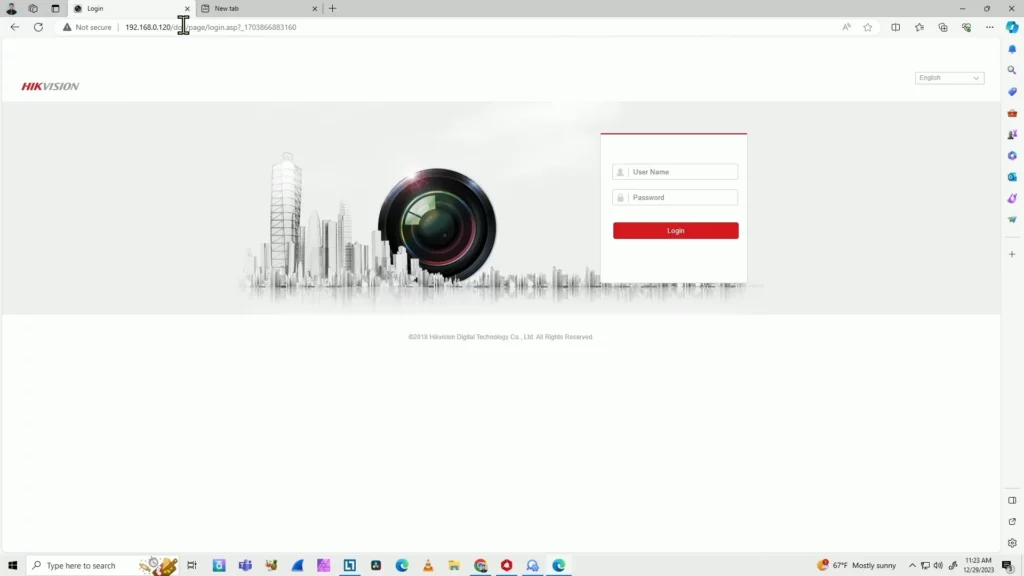
Next, open your browser.
- Type the new IP address
- Press Enter
- Login with your password
At first, you may see a plugin message.
This is common.
Step 7: Fix Live View Issue in Modern Browsers
If you use Edge or Chrome:
- Live view may not show
- Plugin message may appear
Easy fix:
- Open browser menu
- Reload page in Internet Explorer mode
- Login again
Now the live view works fine.
Step 8: Add Camera to Hikvision NVR Manually
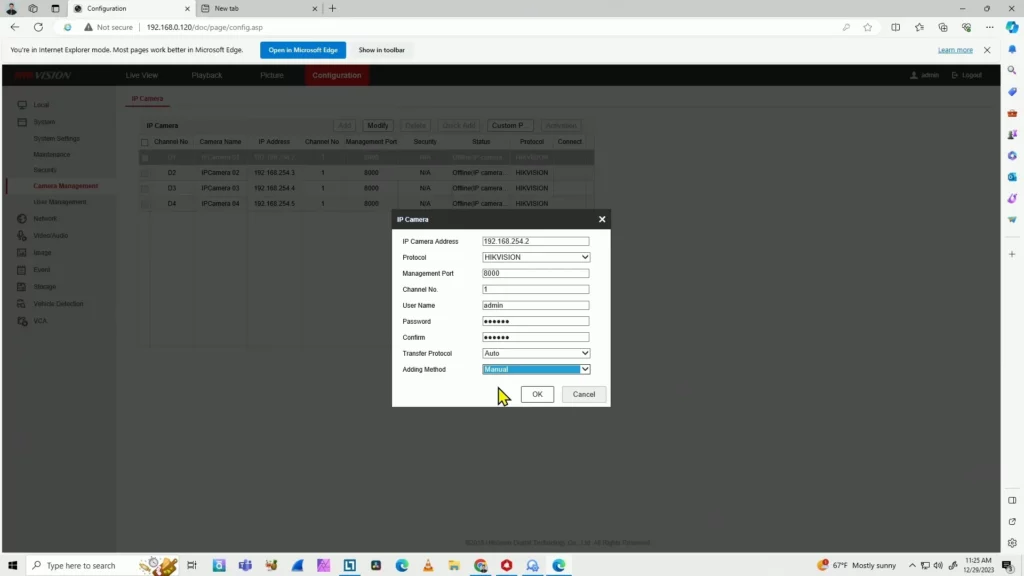
Now let’s add the camera.
Steps:
- Go to Configuration
- Open Camera Management
- Select a camera channel
- Click Modify
- Choose Manual mode
- Select protocol as Hikvision
- Enter camera IP address
- Enter camera password
- Click OK
Wait a few seconds.
Step 9: Camera Status Shows Offline? Don’t Worry
Sometimes you may see:
- Camera does not exist
- Camera looks offline
This is normal.
Just do this:
- Go to Live View
- Then return to Camera Management
- Refresh the page
Now the camera will show Online.
Step 10: Check Live View
Finally:
- Open Live View
- Click on the camera
- Video should appear
This confirms everything is working correctly.
Direct NVR Camera vs Network Camera
There are two ways to connect cameras:
Cameras Connected Directly to NVR
- Auto detected
- Plug and Play
- No manual setup needed
Cameras Connected via Switch
- Manual setup required
- Same network needed
- Works perfectly
Both methods are supported.
FAQs
1. Why does my Hikvision NVR show inactive status?
This happens when the NVR is new or reset to factory default. Hikvision devices must be activated before use. You can activate it using the SADP Tool.
2. Can I activate Hikvision NVR using a computer?
Yes, you can. Using a computer is the easiest method. You only need the SADP Tool and a network connection.
3. What should I do if I forget my Hikvision NVR password?
If you forget the password, you must reset the NVR. After reset, the NVR becomes inactive again. Then you need to activate it with a new password.
4. Why is my camera showing offline after adding it to NVR?
This is common. Sometimes the page does not refresh correctly. Go to Live View, then return to Camera Management. The camera usually shows online after refresh.
5. Do I need manual setup if the camera is connected directly to the NVR?
No, you do not. Directly connected cameras are detected automatically. Manual setup is only needed when using a network switch.
Conclusion
Now your Hikvision NVR is activated and working. The camera is online. Live view is smooth. This method is simple and reliable. Follow these steps anytime you reset or install a new NVR. You are now ready to add more cameras and start recording.