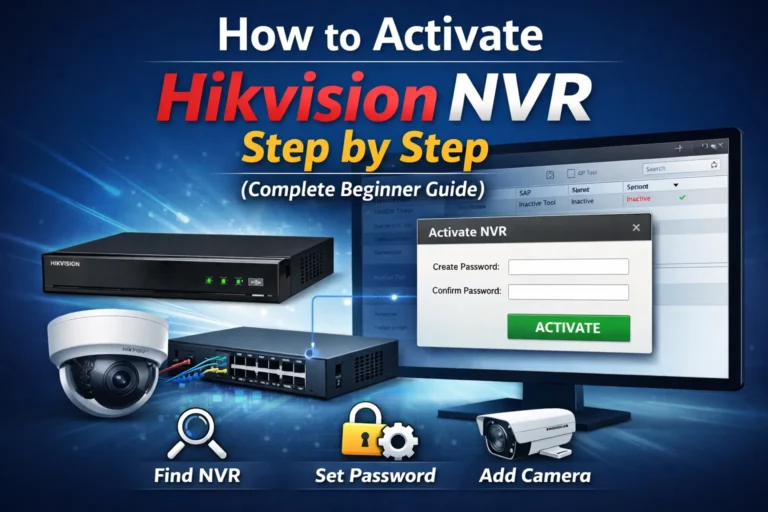
How to Activate Hikvision IP Camera Using SADP Tool
Did you just buy a new Hikvision IP camera? You might notice it shows as “inactive” when you try to set it up. Don’t worry. This is normal and actually protects your camera from hackers.
Hikvision controls 27.3% of the global security camera market. That makes them the world’s largest surveillance camera manufacturer. However, in 2023 alone, Hikvision cameras were targeted in nearly 58% of all online attacks against IP cameras.
The good news? Activate hikvision ip camera properly takes only 5 to 10 minutes. This guide shows you exactly how to do it using the SADP Tool.
Why SADP Tool Is Needed to Activate Hikvision IP Camera
SADP stands for Search Active Devices Protocol. It’s free software made by Hikvision. The tool helps you find and activate Hikvision cameras on your network.
Think of it like this. When you buy a new phone, you need to set it up before using it. Similarly, your Hikvision camera stays inactive until you activate it. This security feature stops unauthorized people from accessing your camera right out of the box.
Important Fact: Around 73,000 security cameras in 256 countries remain accessible with default passwords. That’s why Hikvision now requires you to create a unique password during activation.
Difference Between Activated and Inactive IP Cameras
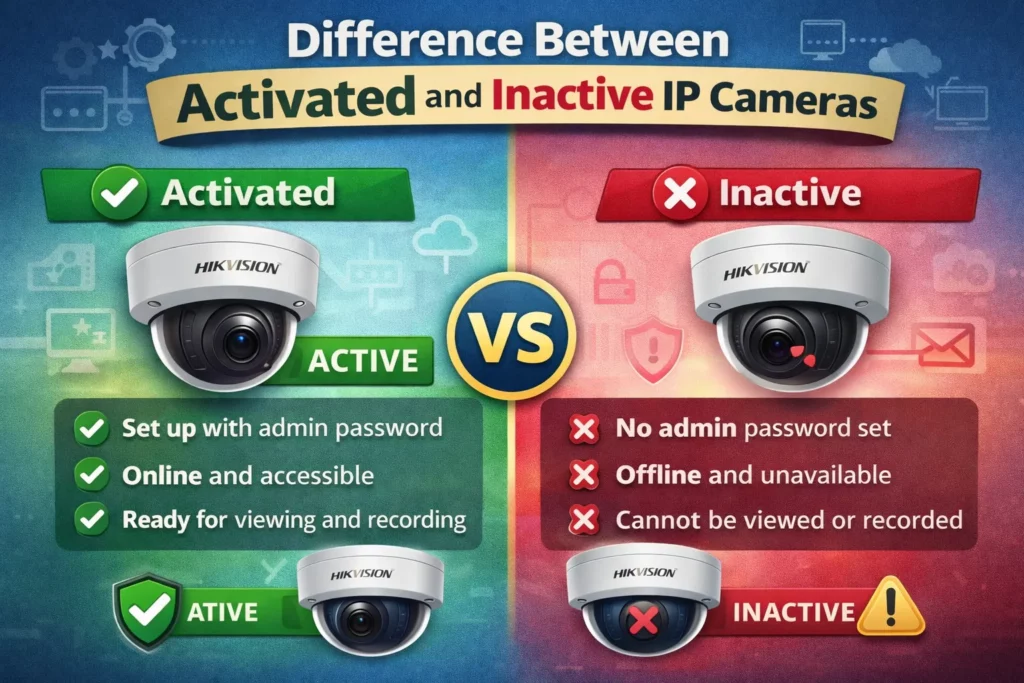
An inactive camera cannot record video or connect to your network. It just sits there waiting for setup. Once you activate it, the camera starts working. It can then record footage, send alerts, and connect to your phone or computer.
Furthermore, activation creates your admin account. This account gives you full control over camera settings. Without activation, nobody can use the camera, not even you.
Requirements Before Activating Hikvision IP Camera
Before starting, make sure you have everything ready. This saves time and prevents common problems.
What You Need
Computer Requirements:
- A Windows PC or laptop (Windows 7 or newer)
- At least 2 GB of free space
- Administrator access to install software
Network Setup:
- A working internet router
- One ethernet cable (LAN cable)
- Power adapter or PoE switch for the camera
Password Planning:
- Your password must be at least 8 characters long
- It needs uppercase letters, lowercase letters, numbers, and special characters
- Write it down in a safe place because you’ll need it every time
Quick Tip: About 30% of users never change their default camera passwords. This makes their cameras easy targets for hackers. Always create a strong, unique password.
Compatible Hikvision Camera Models
The SADP Tool works with all modern Hikvision IP cameras. This includes dome cameras, bullet cameras, PTZ cameras, and NVRs. Basically, if it’s a Hikvision network device, SADP can find it.
How to Download and Install SADP Tool
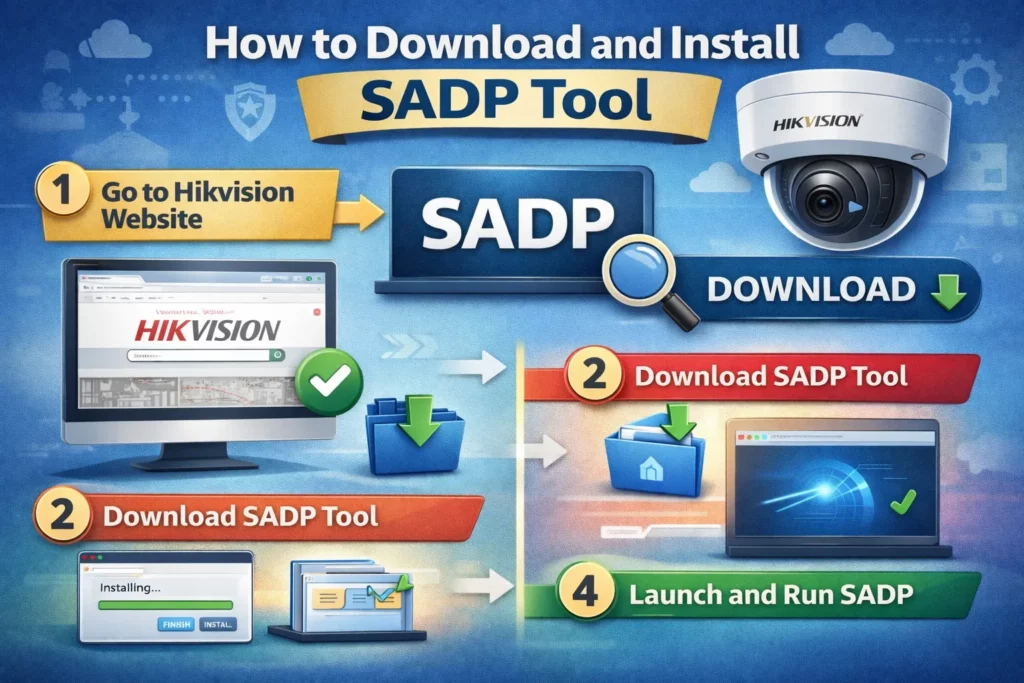
Getting the SADP Tool is straightforward. Just follow these simple steps.
Step 1: Download SADP Tool Safely
First, go to the our website. Go to the download section. Find the SADP Tool for Windows. The latest version is v3.1.4.5 as of November 2025.
Step 2: Install the Software
Once the download finishes, find the file in your Downloads folder. Double-click to start installation. The whole process takes about 2 to 3 minutes.
Click “Next” through the installation screens. Accept the terms and conditions. Choose the default installation location unless you have a specific reason to change it. Finally, click “Install” and wait for it to finish.
Step 3: Launch SADP Tool
After installation completes, you’ll see a SADP icon on your desktop. Double-click it to open the program. The tool will automatically start scanning your network for Hikvision devices.
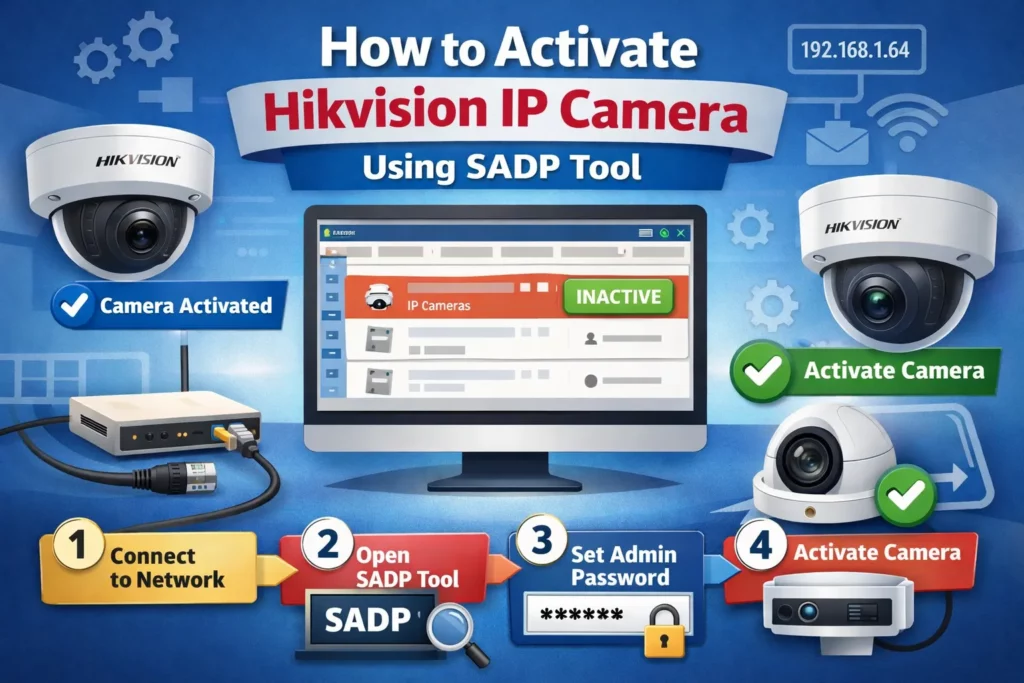
How to Activate Hikvision IP Camera Using SADP Tool
Now comes the main part. Follow these steps carefully to activate your camera correctly.
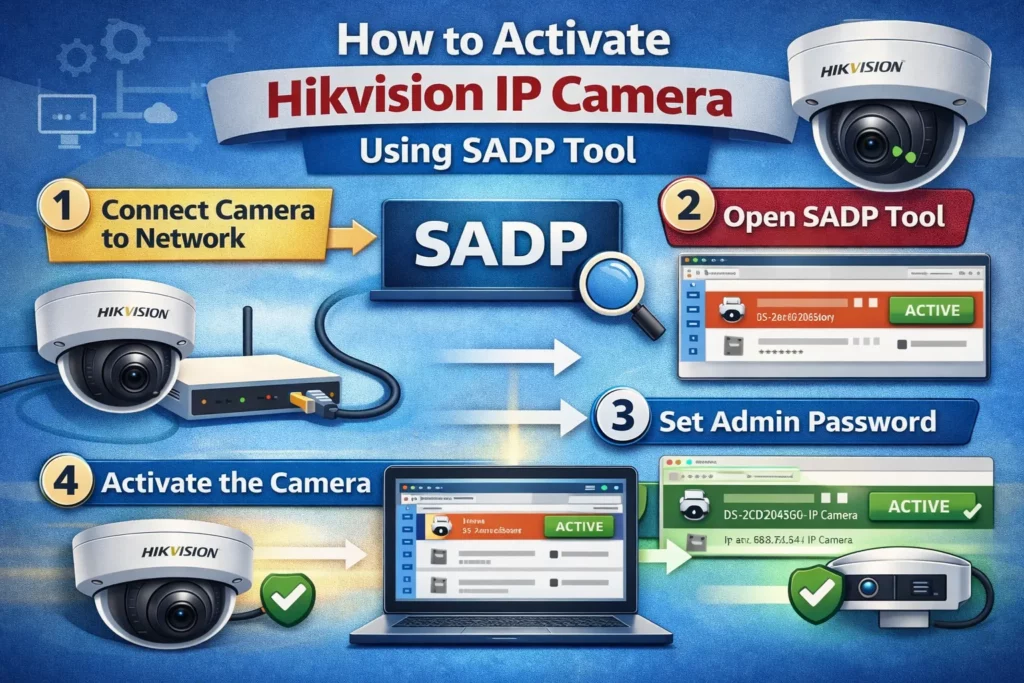
Step 1: Connect Hikvision IP Camera to Network
Take your ethernet cable and plug one end into the camera. Plug the other end into your router or network switch. Make sure both connections are firm and secure.
Next, power up the camera. You can use either a 12V power adapter or a PoE switch. If you’re using PoE, the ethernet cable provides both power and data. This is cleaner and easier.
Wait about 30 seconds for the camera to boot up. You’ll see LED lights blinking on the camera. This means it’s starting up properly.
Step 2: Launch SADP Tool
Open the SADP Tool on your computer. The program immediately starts scanning your local network. This scan happens automatically every 15 seconds.
The main window shows two sections. The top section lists all Hikvision devices found on your network. The bottom section shows details about the selected device.
What You’ll See: Active cameras appear in black text. Inactive cameras appear in gray text with a red “Inactive” status label.
Step 3: Select Inactive Hikvision IP Camera
Look through the list of devices. Find your inactive camera. You can identify it by checking the device model number or serial number. These details match the sticker on your actual camera.
Click once on the inactive camera to select it. The bottom panel now displays important information like IP address, subnet mask, gateway, and device status.
Common Issue: If your camera doesn’t appear in the list, wait 30 seconds and click the “Refresh” button. Still not showing up? Check your network cables and firewall settings.
Step 4: Create Admin Password
This is the most important step. Your password protects your camera from unauthorized access.
In the bottom panel, find the “Password” field. Type your new admin password. Then type it again in the “Confirm Password” field. Both entries must match exactly.
Password Rules You Must Follow:
- Minimum 8 characters (longer is better)
- At least one uppercase letter (A-Z)
- At least one lowercase letter (a-z)
- At least one number (0-9)
- At least one special character (!@#$%^&*)
Security Tip: Never use common passwords like “Password123” or “Admin@123”. Hackers try these first. Instead, create something unique that only you would know.
Here’s why strong passwords matter so much. Research shows that 90% of IP-based surveillance devices don’t use secure login portals. Additionally, approximately 80,000 Hikvision cameras were found exploitable due to weak security settings.
Step 5: Activate the Camera
After entering your password twice, look for the “Activate” button. It’s usually at the bottom of the panel. Click this button once.
The SADP Tool now sends your password to the camera. This process takes about 5 to 10 seconds. Don’t close the program or disconnect anything during this time.
Success! You’ll see a confirmation message saying “Activation Successful”. Moreover, the camera status changes from “Inactive” to “Active”. The text color changes from gray to black.
Congratulations! Your Hikvision IP camera is now activated and ready to use.
How to Assign IP Address After Activation
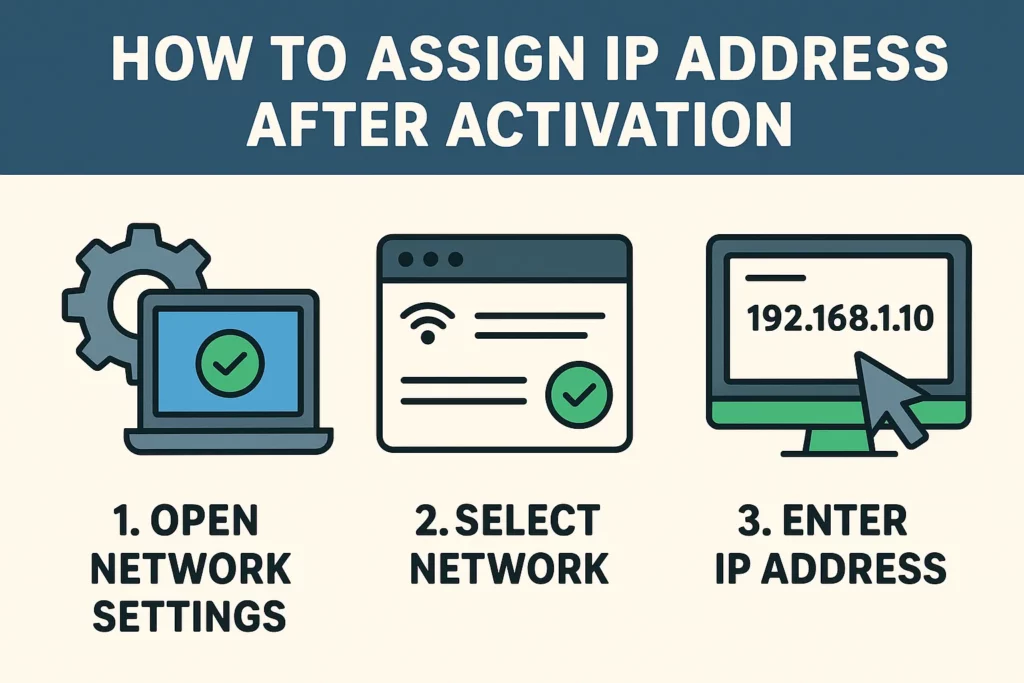
After activation, you should configure the camera’s IP address. This ensures smooth network operation.
Understanding DHCP vs Static IP
DHCP means your router assigns an IP address automatically. This is easier but the address might change. Static IP means you manually set a permanent address. This is better for security cameras because you always know where to find them.
For Home Users: DHCP works fine. It’s simple and automatic.
For Business Users: Use static IP. This prevents connection problems and makes remote access easier.
Setting IP Address via SADP
If you want to change the IP address, select your camera in SADP. Look at the bottom panel again. Find the “Network Parameters” section.
Choose between “DHCP” or “Static” mode. If you choose Static, enter your desired IP address. Make sure it matches your network range. For example, if your router is 192.168.1.1, use something like 192.168.1.100 for your camera.
Also enter the subnet mask (usually 255.255.255.0) and gateway (usually your router’s IP). Click “Modify” to save these changes.
Avoiding IP Conflicts
An IP conflict happens when two devices use the same IP address. This causes both devices to disconnect randomly. To prevent this, choose an IP address that no other device uses.
Pro Tip: Use IP addresses above 100 for your cameras. Most home devices use lower numbers. This separation prevents conflicts.
How to Verify Hikvision Camera Activation
Now let’s make sure everything works correctly.
Check Status in SADP Tool
Keep the SADP Tool open. Your camera should show “Active” status. The device type, model, and serial number should all display correctly.
If the status still shows “Inactive”, try clicking “Refresh” again. Sometimes the display doesn’t update immediately.
Access Camera via Web Browser
Open your web browser (Chrome, Firefox, or Edge). Type the camera’s IP address in the address bar. For example, type “192.168.1.100” if that’s your camera’s IP.
Press Enter. The browser loads the camera’s login page. This might take 10 to 15 seconds the first time.
Login Using Admin Credentials
On the login page, enter your username and password. The username is usually “admin”. The password is the one you created during activation.
Click “Login”. If everything works, you’ll see the camera’s live view and settings menu. You can now configure recording schedules, motion detection, and other features.
Success Indicator: You see live video from your camera. This confirms activation worked perfectly.
Common Problems During Hikvision Camera Activation
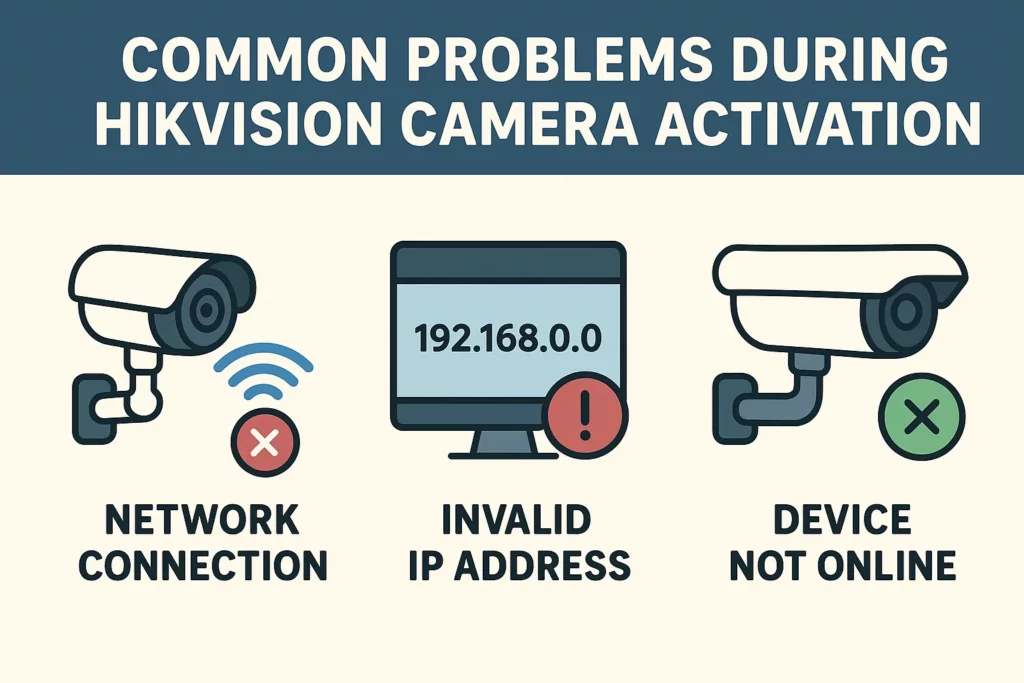
Even with careful steps, problems sometimes happen. Here are the most common issues and what they mean.
Camera Not Showing in SADP Tool
This is the most frequent problem. Several things could cause it.
First, check your network cable. Make sure it’s plugged in firmly at both ends. Try a different cable if you have one available.
Second, check if the camera has power. Look for LED lights on the camera. No lights mean no power.
Third, your computer and camera must be on the same network. If you have multiple networks at home, make sure both devices connect to the same one.
Technical Note: Your Windows firewall might block SADP Tool. Temporarily disable it to test. If this fixes the problem, add SADP as an allowed program in your firewall settings.
Activation Failed Error
Sometimes you enter everything correctly but still see “Activation Failed”. This usually happens for these reasons.
Your password might not meet all the requirements. Remember, you need uppercase, lowercase, numbers, and special characters. Try a different password that clearly meets all rules.
Another possibility is network communication problems. Check if your computer can ping the camera’s IP address. Open Command Prompt and type “ping 192.168.1.64” (use your camera’s actual IP). If you get responses, the network works fine.
Password Not Accepted
You created a password during activation. Now you try to log in but it doesn’t work. This happens more often than you’d think.
First, check if Caps Lock is on. Passwords are case-sensitive. “Password” and “password” are completely different.
Second, make sure you’re typing the password exactly as you created it. Special characters especially cause problems. The symbol above the number keys changes if you hold Shift.
Solution: If you’re completely locked out, you’ll need to reset the camera to factory defaults. This involves pressing a reset button on the camera for 30 seconds. However, this erases all settings and you’ll need to activate again.
Network Not Detected
SADP Tool shows “No devices found” even though your camera is connected. This suggests network problems.
Check if your computer’s network adapter is working. Go to Control Panel, then Network Connections. Your ethernet or WiFi adapter should show “Connected”.
Also, some computers have multiple network adapters. SADP might be scanning the wrong one. In SADP Tool settings, choose the correct network adapter manually.
How to Fix SADP Tool Activation Issues
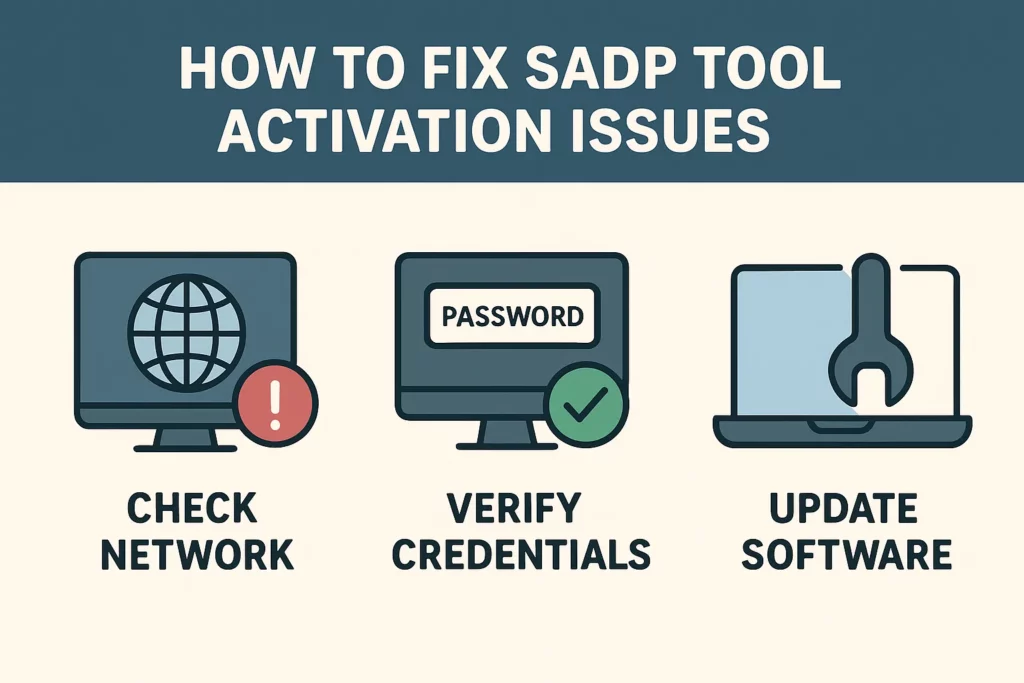
Let’s solve the technical problems that prevent activation.
Disable Firewall Temporarily
Windows Firewall sometimes blocks SADP Tool from scanning the network. To test if this is the problem, temporarily disable your firewall.
Go to Windows Security. Click “Firewall & network protection”. Turn off your private network firewall. Now try SADP Tool again.
Important: If disabling the firewall fixes the problem, turn it back on immediately. Then add SADP Tool as an allowed program instead of leaving your firewall off.
Use Correct Network Adapter
Modern computers often have both WiFi and ethernet adapters. SADP Tool needs to scan through the same adapter that connects to your camera.
Open SADP Tool. Look at the top toolbar. Find the network adapter dropdown menu. Select the adapter that connects to your camera’s network.
For example, if your camera plugs into your router via ethernet, choose your ethernet adapter. If you’re using a WiFi connection, choose your WiFi adapter.
Reset Camera If Required
When nothing else works, resetting the camera to factory defaults often solves the problem. However, use this as a last resort because it erases all settings.
Find the reset button on your camera. It’s usually a small hole labeled “Reset”. Take a paperclip or pin and press the button inside. Hold it for 30 seconds while the camera is powered on.
The camera reboots and returns to factory settings. It shows as “Inactive” again in SADP Tool. Now you can start the activation process fresh.
Security Tips After Activate Hikvision IP Camera
Activation is just the beginning. Follow these security practices to keep your camera safe.
Change Default Settings
Even after activation, some default settings remain. Go through your camera’s configuration menu. Change anything that says “default” or uses common values.
Disable any features you don’t need. For example, if you don’t use cloud storage, turn it off. Fewer active features mean fewer potential security holes.
Enable Strong Passwords
You already created a password during activation. However, consider changing it every 90 days. This security practice reduces the risk if someone discovers your password.
Also, use different passwords for different cameras. If you have five cameras, don’t use the same password for all of them. If a hacker cracks one, they shouldn’t automatically access all your cameras.
Statistic Alert: Only 15% of organizations feel adequately prepared to handle cyber threats. Don’t become a statistic. Take password security seriously.
Update Firmware Regularly
Firmware is the software that runs inside your camera. Manufacturers regularly release updates that fix security problems and add new features.
Check for firmware updates every three months. When Hikvision releases security patches, install them immediately. Keeping firmware updated can close unused ports, improve password security, and patch software vulnerabilities.
Here’s why this matters. In 2021, security researchers discovered an average of 50 new vulnerabilities every single day. Old firmware leaves your camera exposed to these known problems.
How to Update: Log into your camera’s web interface. Go to System Settings, then Maintenance, then Upgrade. Check if a new firmware version is available. Follow the on-screen instructions to install it.
Additional Security Measures
Beyond the basics, consider these advanced security tips.
Enable HTTPS: Make sure your camera uses HTTPS instead of HTTP. HTTPS encrypts data traveling between your camera and your computer. Research shows that 90% of IP-based surveillance devices don’t use secure login portals by default.
Use a VPN for Remote Access: Never expose your camera directly to the internet. If you need to view your camera from outside your home, use a VPN connection. This adds a secure tunnel between you and your camera.
Segment Your Network: Create a separate network just for security cameras. This prevents hackers who compromise a camera from accessing your main computers and devices.
Enable Two-Factor Authentication: If your camera supports it, turn on two-factor authentication. This requires both your password and a code from your phone to log in.
Disable Unused Services: Many cameras have SSH, Telnet, and other services enabled by default. If you don’t use these, disable them. Research shows that approximately 8% of surveillance devices have open SSH and Telnet ports that hackers can exploit.
Frequently Asked Questions (FAQs)
Can I activate Hikvision IP camera remotely?
No, you cannot activate a camera remotely. Activation must happen on the same local network as the camera. This security measure prevents hackers from activating cameras they don’t physically own.
However, once activated, you can access and manage your camera remotely through proper network configuration.
What is the default username for Hikvision camera?
Modern Hikvision cameras don’t have a default password anymore. You must create one during first activation. The username is typically “admin” but you set the password yourself.
Older cameras (before 2016) came with default credentials, but Hikvision stopped this practice due to security concerns.
Why is my Hikvision camera inactive?
New Hikvision cameras ship in an “inactive” state as a security feature. This prevents unauthorized people from accessing your camera before you set it up. The inactive status protects you.
Remember, around 73,000 security cameras worldwide remain accessible with default passwords. Hikvision’s inactive default prevents your camera from joining that list.
Is SADP Tool required for all Hikvision cameras?
No, but it’s the easiest and most convenient method. You can also activate cameras through a web browser or NVR interface. However, SADP Tool makes the process simpler, especially when you have multiple cameras.
The tool is completely free and works on all Windows computers. There’s no downside to using it.
Can I activate multiple cameras at once using SADP Tool?
Yes, SADP Tool supports batch activation. Simply select multiple inactive cameras from the list. Hold Ctrl while clicking to select several cameras. Then enter the same password for all of them and click “Activate”.
This feature saves significant time for large installations. Instead of activating 20 cameras one by one, you can do them all simultaneously.
How often should I update my camera firmware?
Check for firmware updates every three months. Install security patches immediately when Hikvision releases them. For feature updates, evaluate whether the new features benefit your system before upgrading.
Firmware updates are crucial for security. They fix newly discovered vulnerabilities and keep your camera protected against current threats.
What happens if I forget my admin password?
If you forget your password, you’ll need to reset the camera to factory defaults. This involves pressing a small reset button on the camera for 30 seconds. The camera then returns to inactive status and you must activate it again with a new password.
This is why writing down your password in a secure location is so important. Consider using a password manager app to store your camera credentials safely.
Do I need technical knowledge to activate a Hikvision camera?
No, activation requires no technical expertise. If you can connect an ethernet cable and type a password, you can activate a Hikvision camera. This guide provides all the steps in simple language that anyone can follow.
The whole process takes only 5 to 10 minutes even for complete beginners.
Is there a Mobile App for Sadp Tool?
Yes. Sadp tool has a mobile app which can be downloaded from our website.
Conclusion
Activate Hikvision IP camera using SADP Tool. It is a straightforward process. It takes just a few minutes but makes a huge difference in your security setup. First, download and install SADP Tool from https://sadptool.net . Next, connect your camera to your network and power it on. Then open SADP Tool, select your inactive camera, and create a strong admin password. Finally, click the activate button and verify the activation worked.
The surveillance camera market continues growing rapidly. It’s expected to reach 78.54 billion dollars by 2037. More people recognize the importance of security cameras. However, having a camera isn’t enough. Properly activating and securing it makes all the difference.
Take action today. Follow this guide step by step. Activate your Hikvision camera correctly using SADP tool. Create strong passwords. Keep firmware updated. Your future self will thank you for taking security seriously right from the start.